
While this version works fine for most people, I've got an updated one that does use a shared Shortcut and does a few more fancy tricky like max out and then reset your phone's brightness, and also pulls from a named album, which can be a lot faster for people with a ton of photos on their phone. Check it out here!
So, your government launched a vaccine card, but there's no app to store it (only one to verify cards), and all they give you is a PDF designed to be printed, and a website you'd have to keep logging in to. So you do the smart thing and take a screenshot of that website. But then what? You've got to dig in to your photos and find that screenshot every time? There has to be a better way!
Well thanks to some built-in iOS features that you might not even know about, there is. We're going to make a "Shortcut" that will pull up an image of your card when double-tapping on the back of your phone.
Note: The "Back Tap" feature is only supported on iPhone 8 and newer. For older phones, adding a the Shortcut as an icon to your home screen is probably the best alternative.
We'll start by visiting the vaccine card site and pulling up our card/QR code.
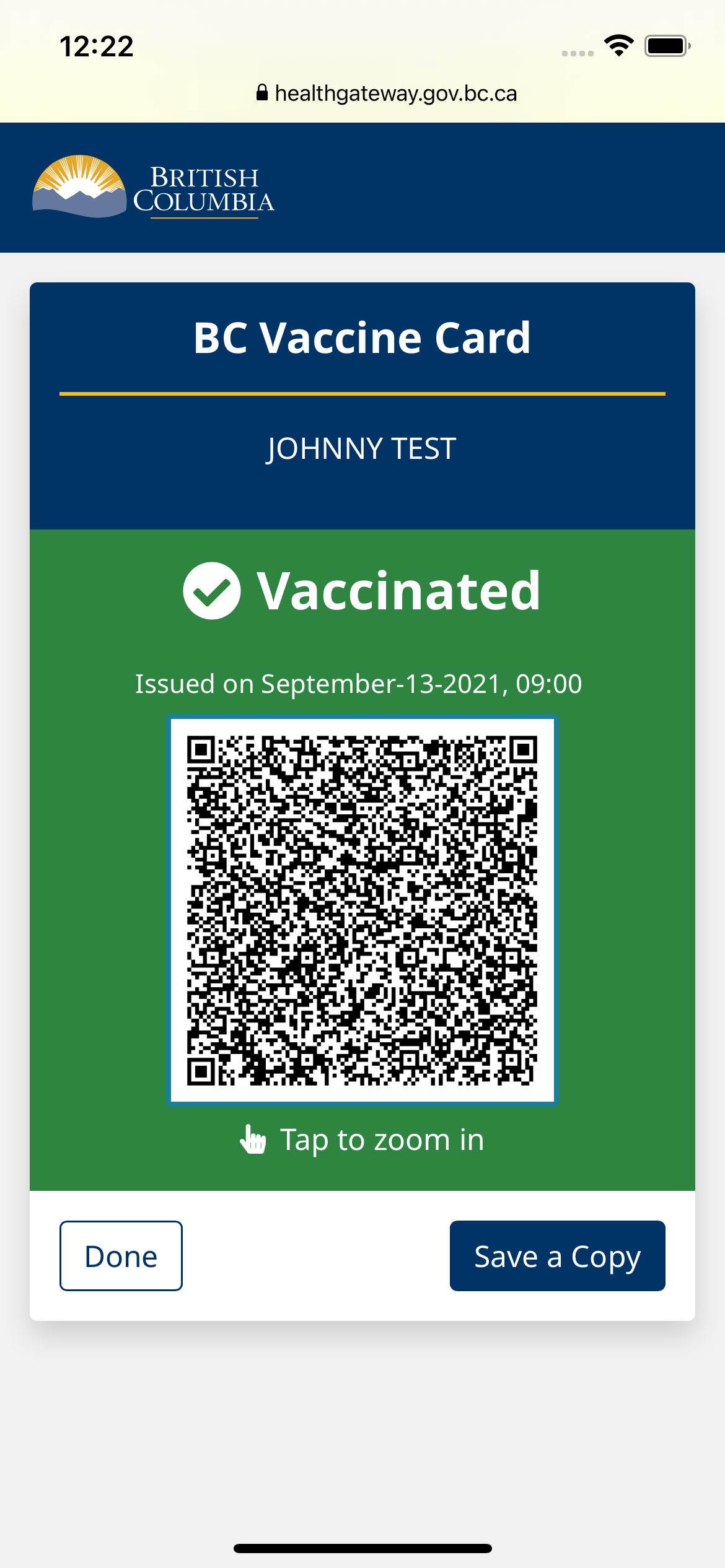
Then take a screenshot. Depending on your phone, this could involve pressing the sleep button and volume up button at the same time, or the home button and sleep button at the same time. More info from Apple.
Bonus Points: Also tap on the QR code to display it bigger and screenshot it or save the image file, and later edit that on to the pass.
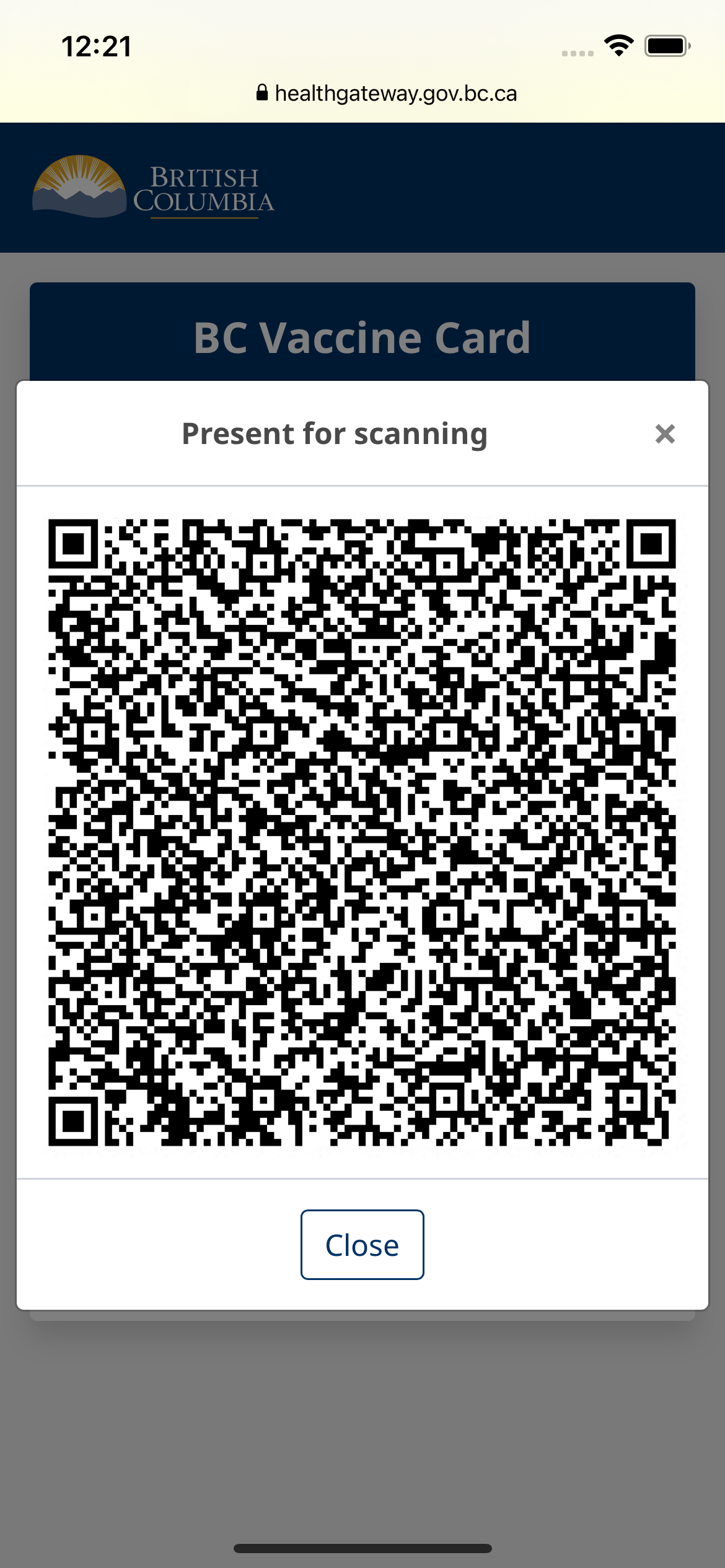
Now head in to the Photos app on your phone, and we're going to do two things. The first is to use the Edit button to crop the screenshot down to just the main pass area.

If you grabbed the larger QR code above, you should also now use some other editing software to place the larger version on the pass and save it back to your photo library.
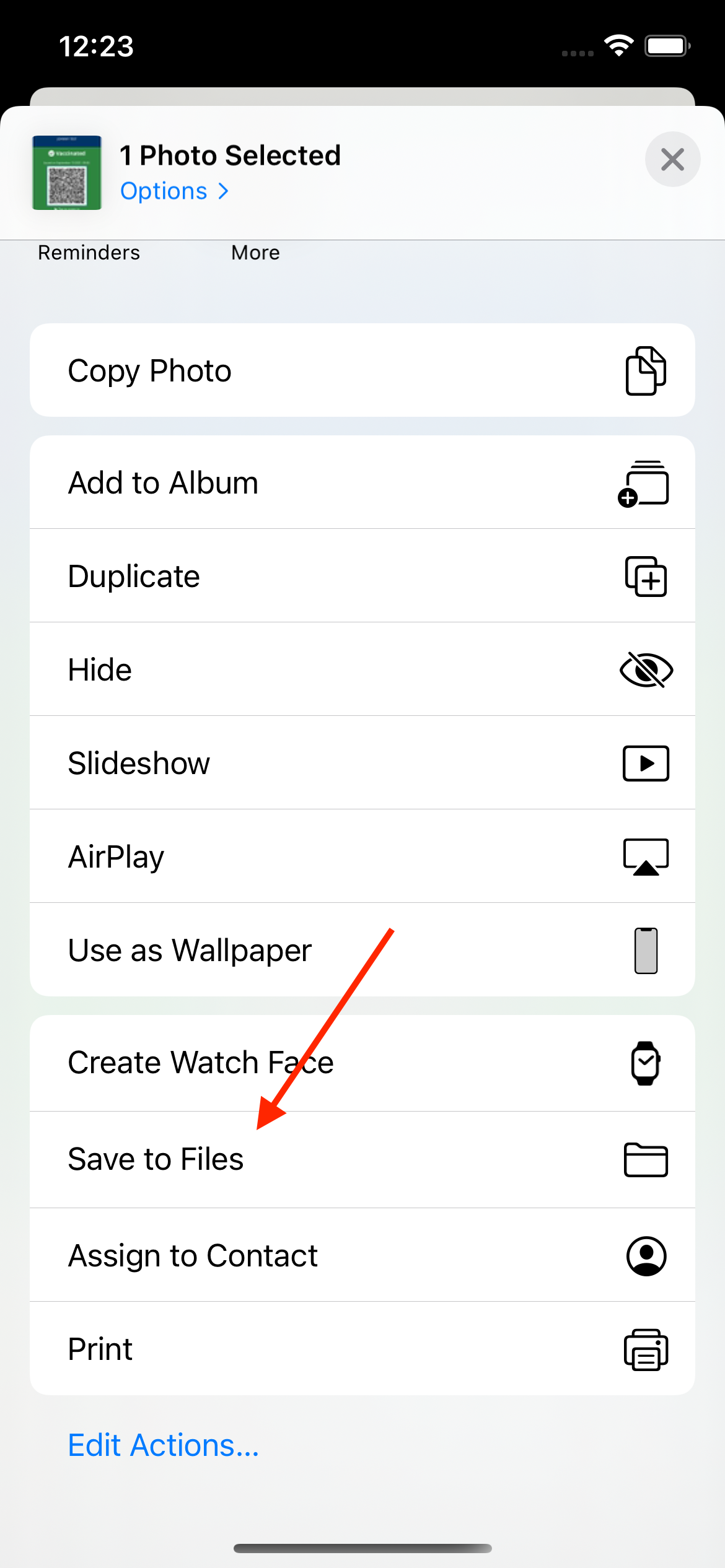
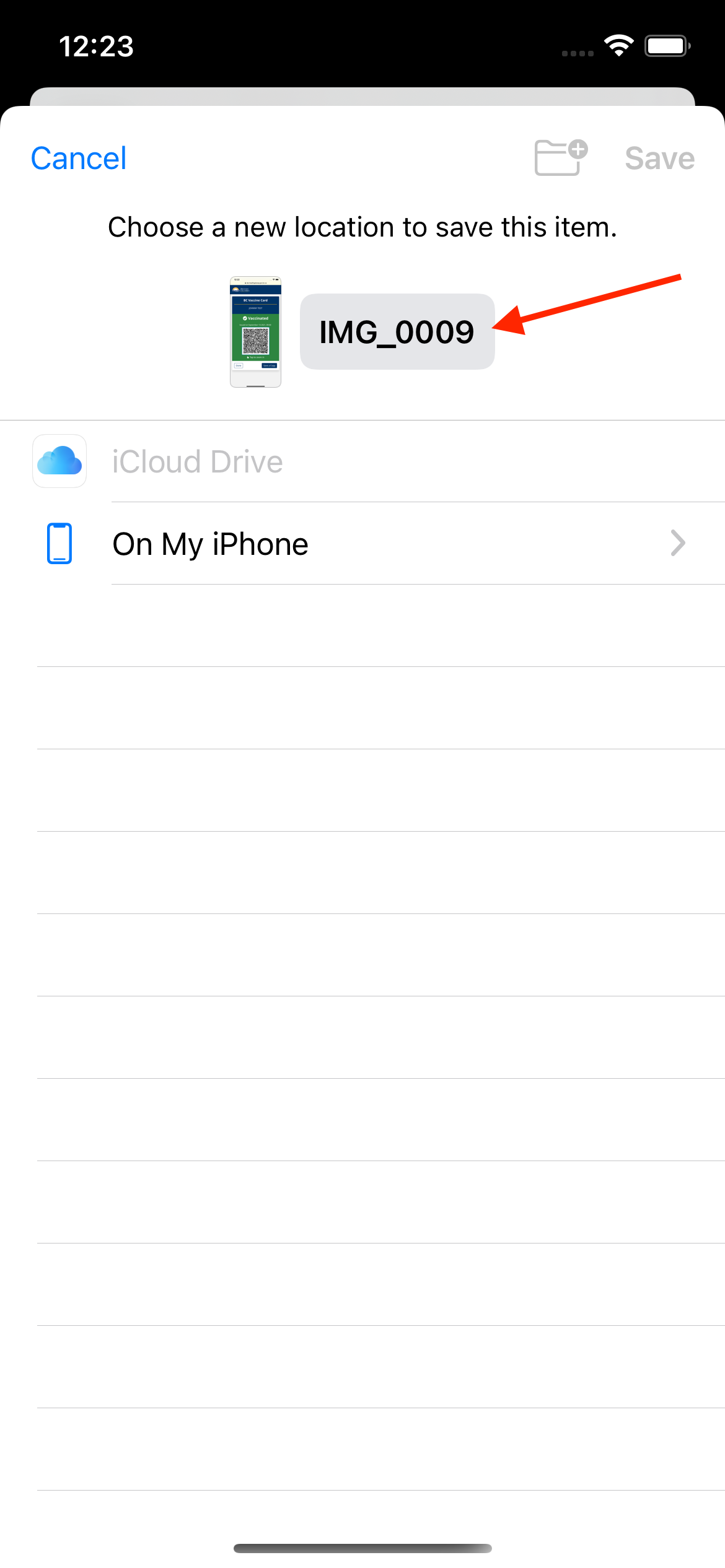
With the edit made, we now need to get the name of this image file to use in our Shortcut. Apple hasn't made this that easy, but it's not too hard either. First, select the Share icon in the bottom-left of the screen. Then scroll down to find Save to Files. On the next screen, you should see a file name at the top, usually something like IMG_0009 (you will have a different number). Make a note of this for the next step. You can then cancel the Save action and exit the Photos app.
We're then going to open the Shortcuts app on your phone. You might have never used this before, or even removed it, so you might need to add it back from the App Store.
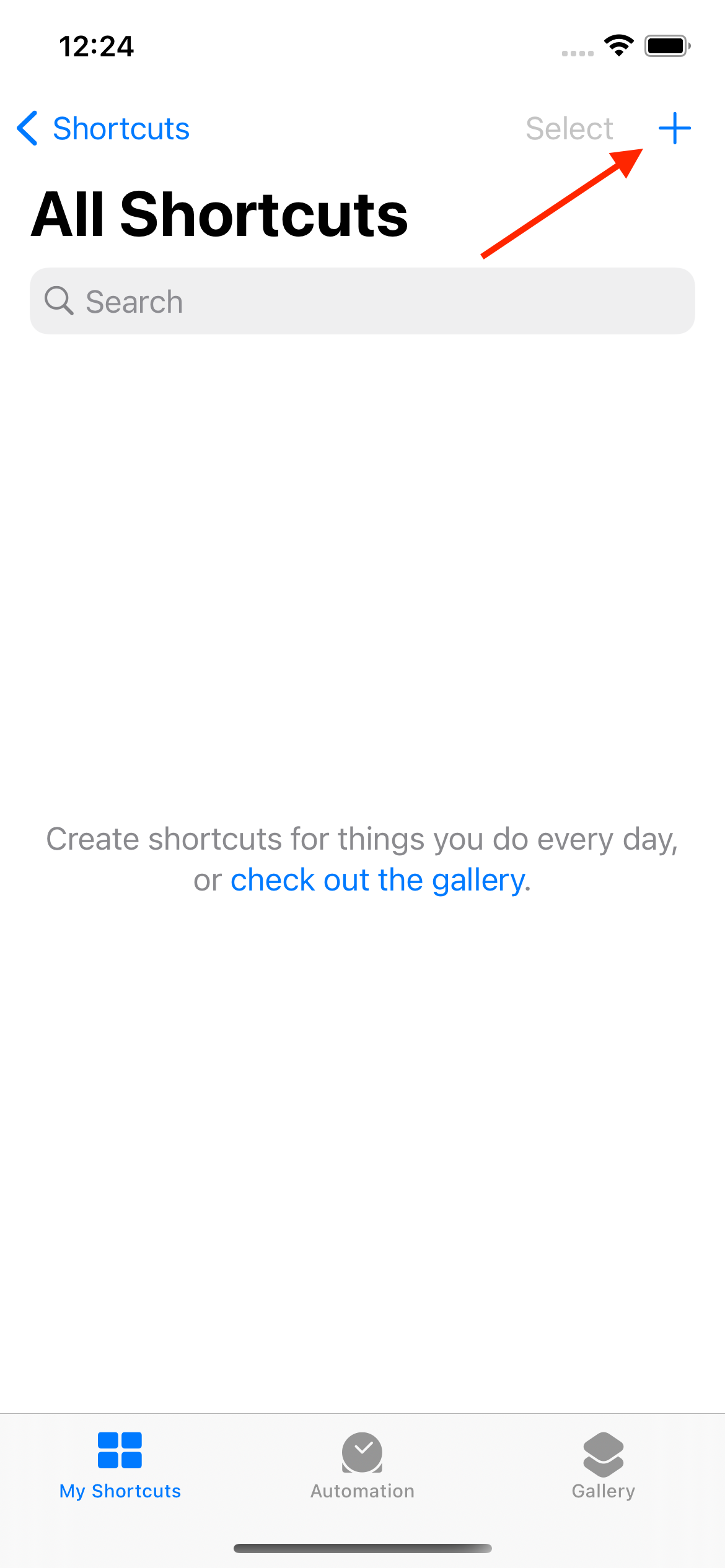
In the Shortcuts app, press the blue + (plus) button it the top right to make a new Shortcut. Press Add Action and search for Find Photos, and tap on it to add it to the shortcut.
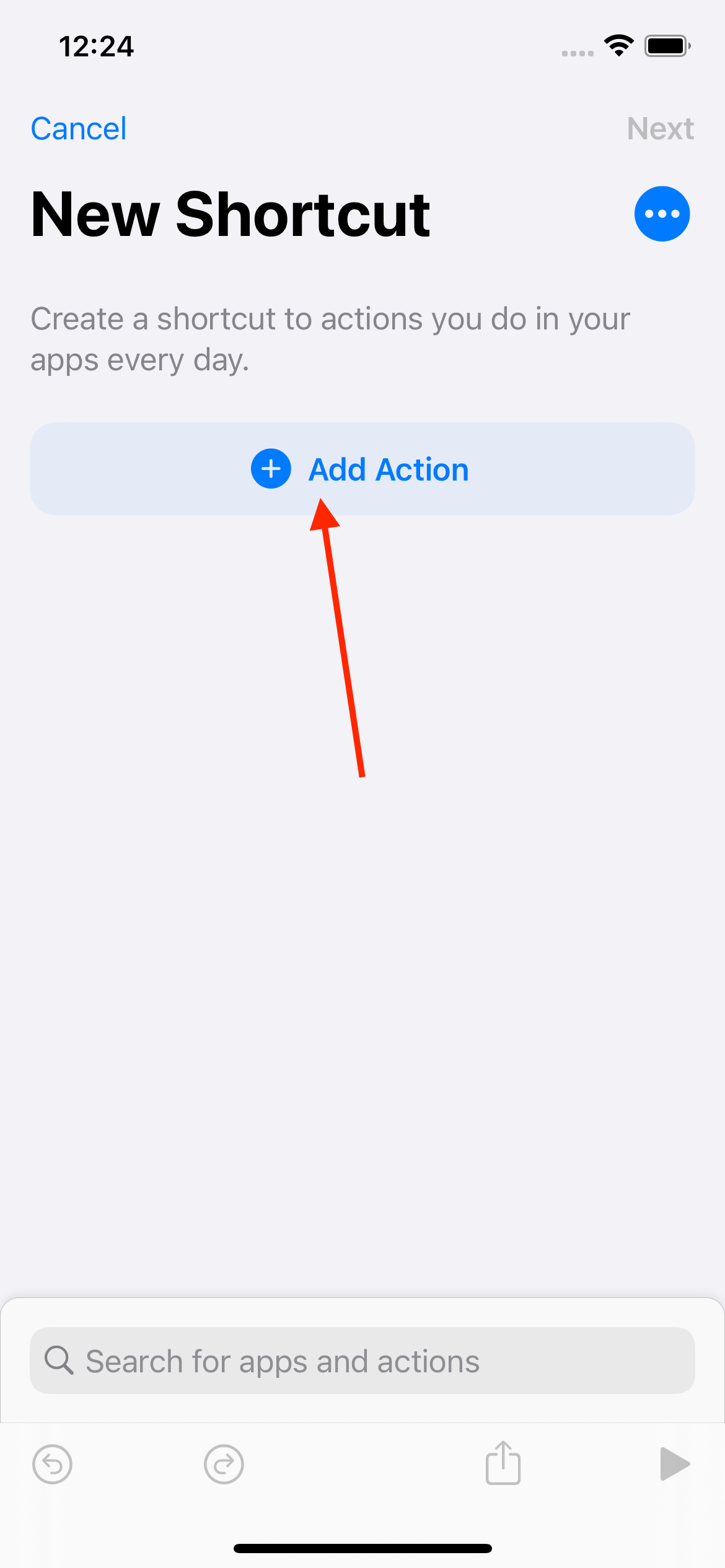
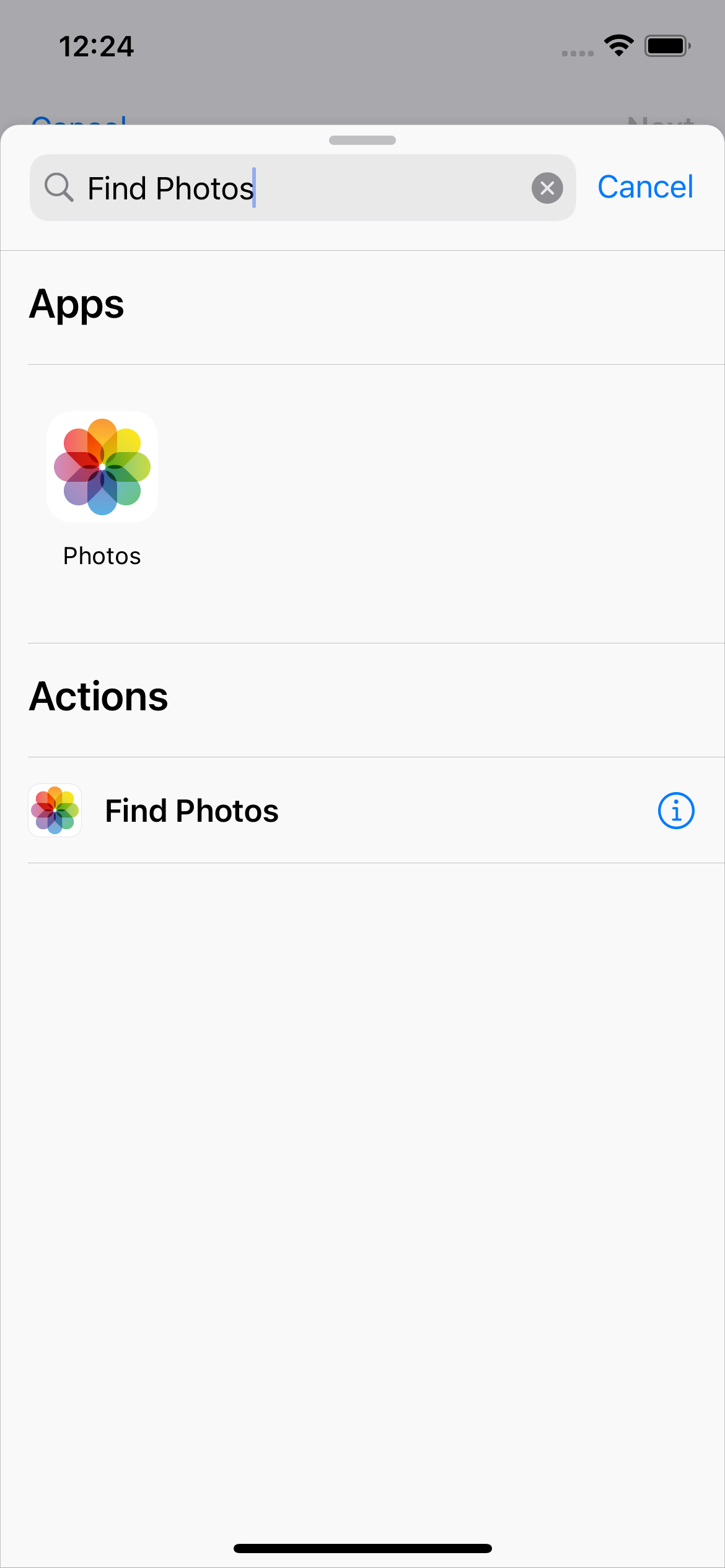
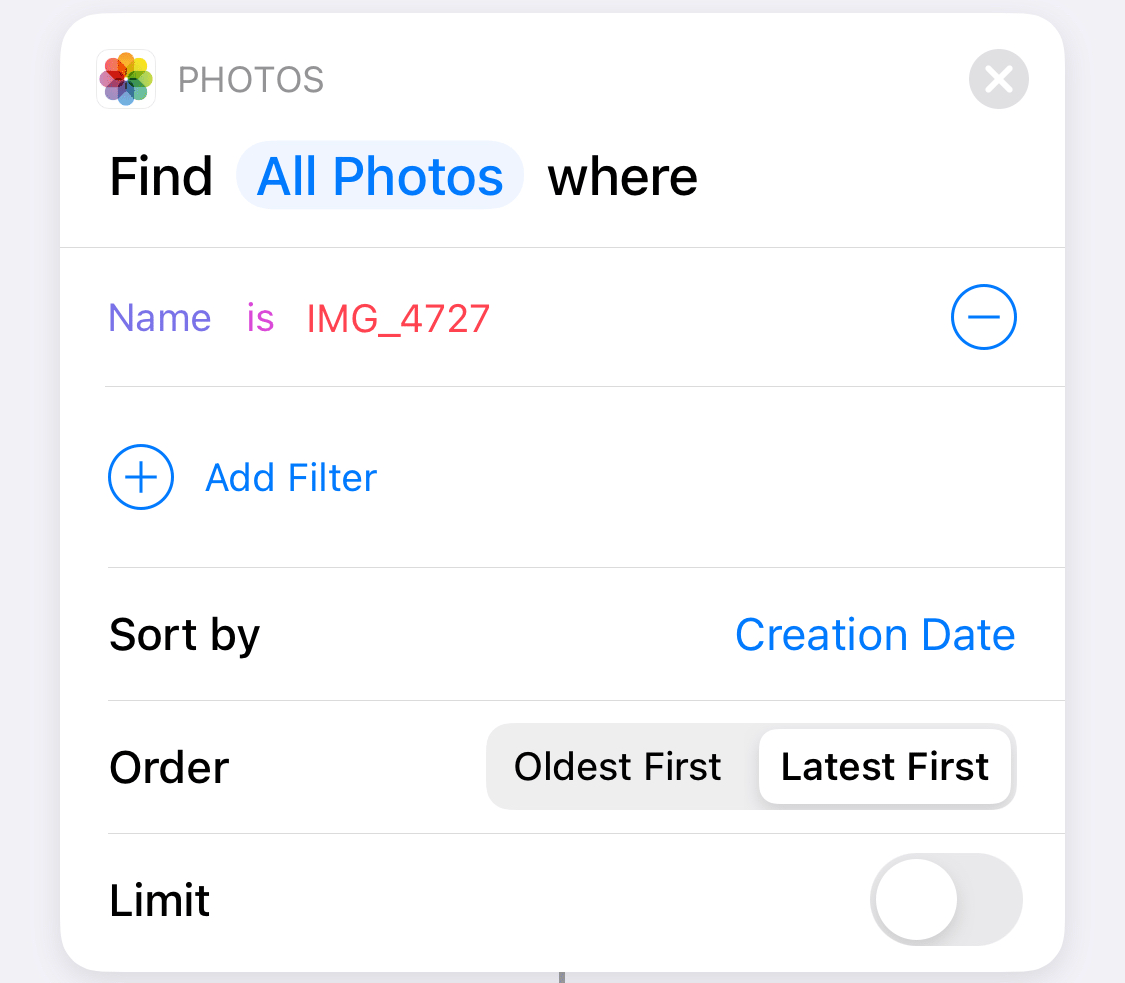
In the new action, tap on Add Filter then tap on Album in purple to change the filter criteria. Scroll down in the list to find Name and tap it. Now tap on the red anything text and type in the image name you found before, something like IMG_0009.
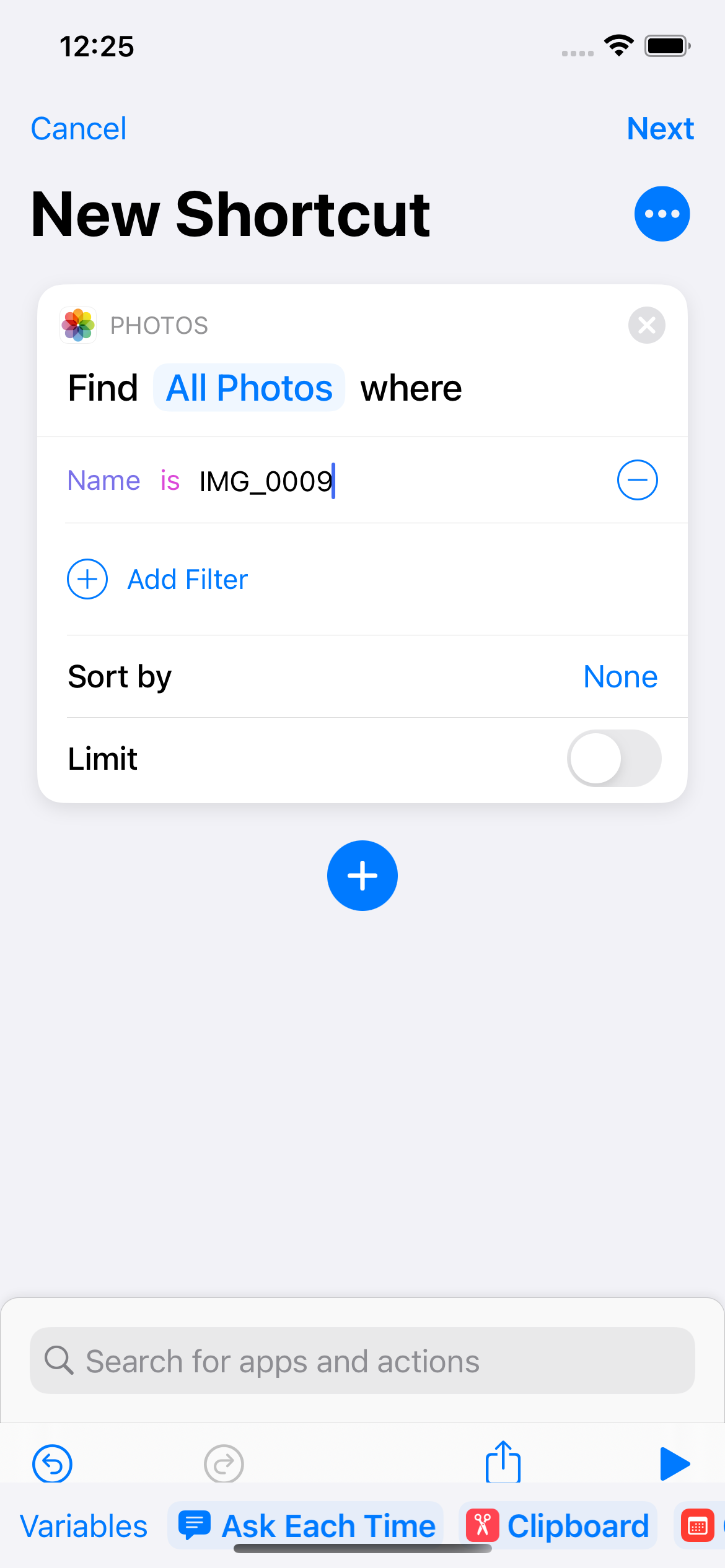
Tap the blue + (plus) icon below the Photos action, and search for and tap on Quick Look. Now tap the blue Play button in the bottom right to test the Shortcut. If everything worked, the screenshot you saved should show in a new sheet. Tap the blue Done button in the upper left corner to dismiss the image. If the image didn't show, go back and check you got the image name correct from the Photos app.
Note: You may have more than one photo on your phone that has the same name. If you get something else when you test the shortcut, you should be able to set the
Sort byoption toCreation Dateand then get newest items first to get the screenshot that you just saved.
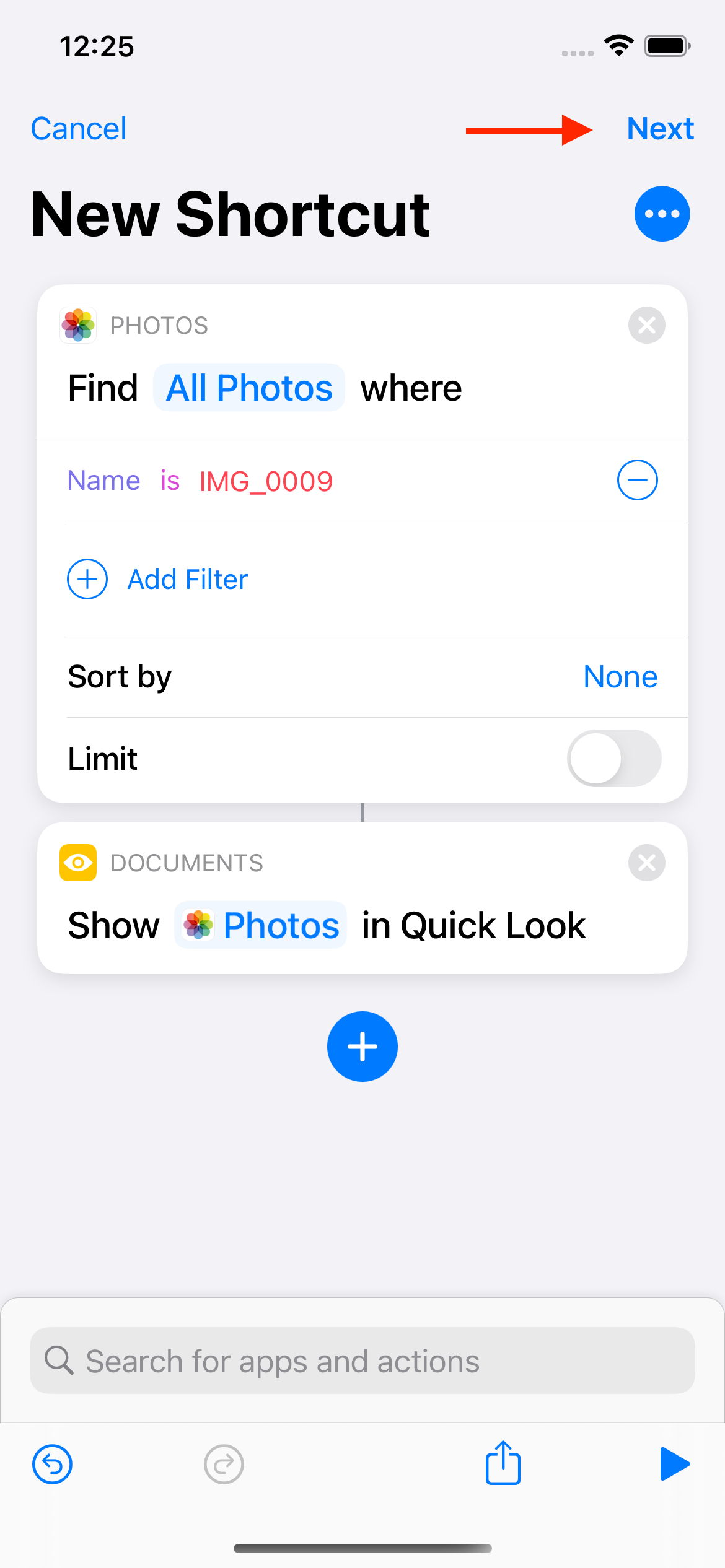
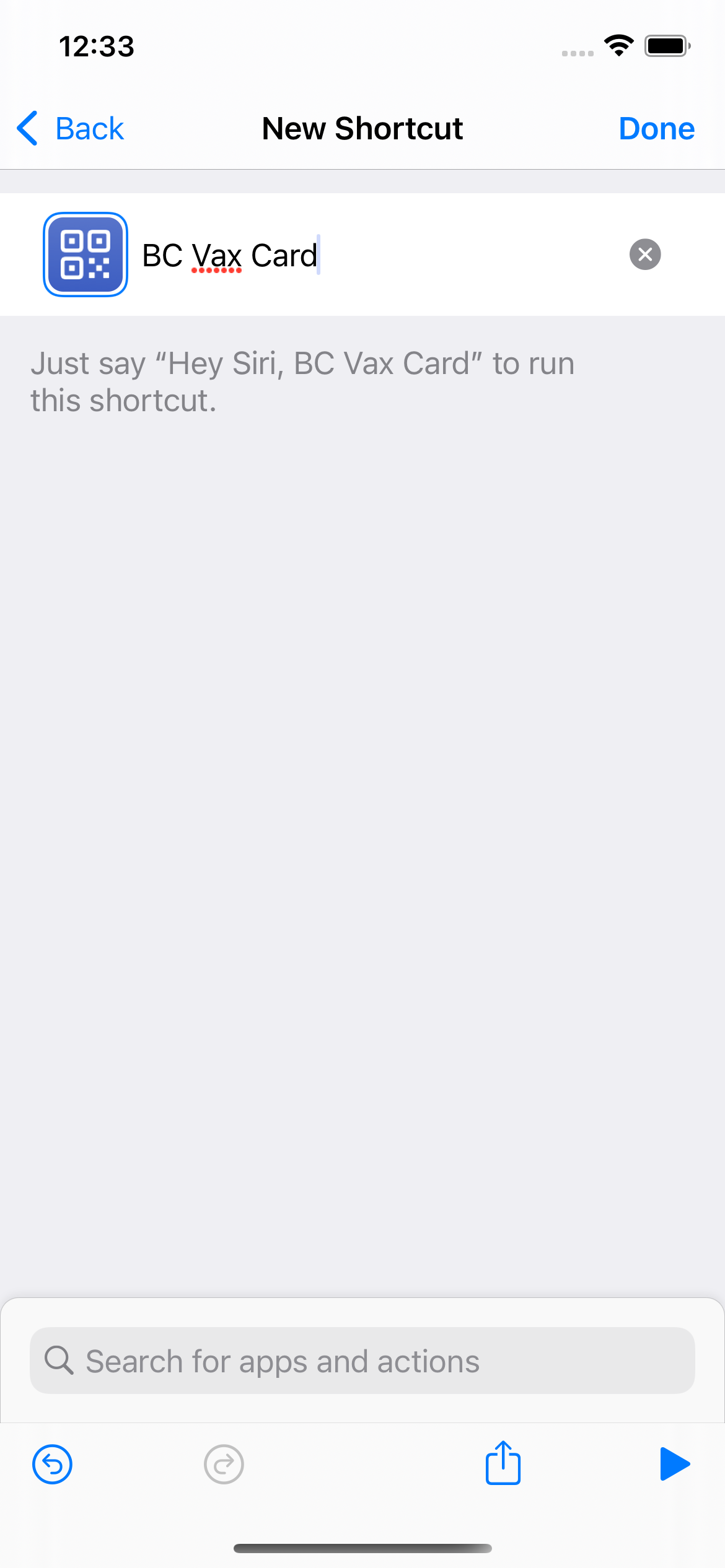
With the Shortcut working, tap the Next button in the upper right, name it and optionally select a custom icon, and press done.
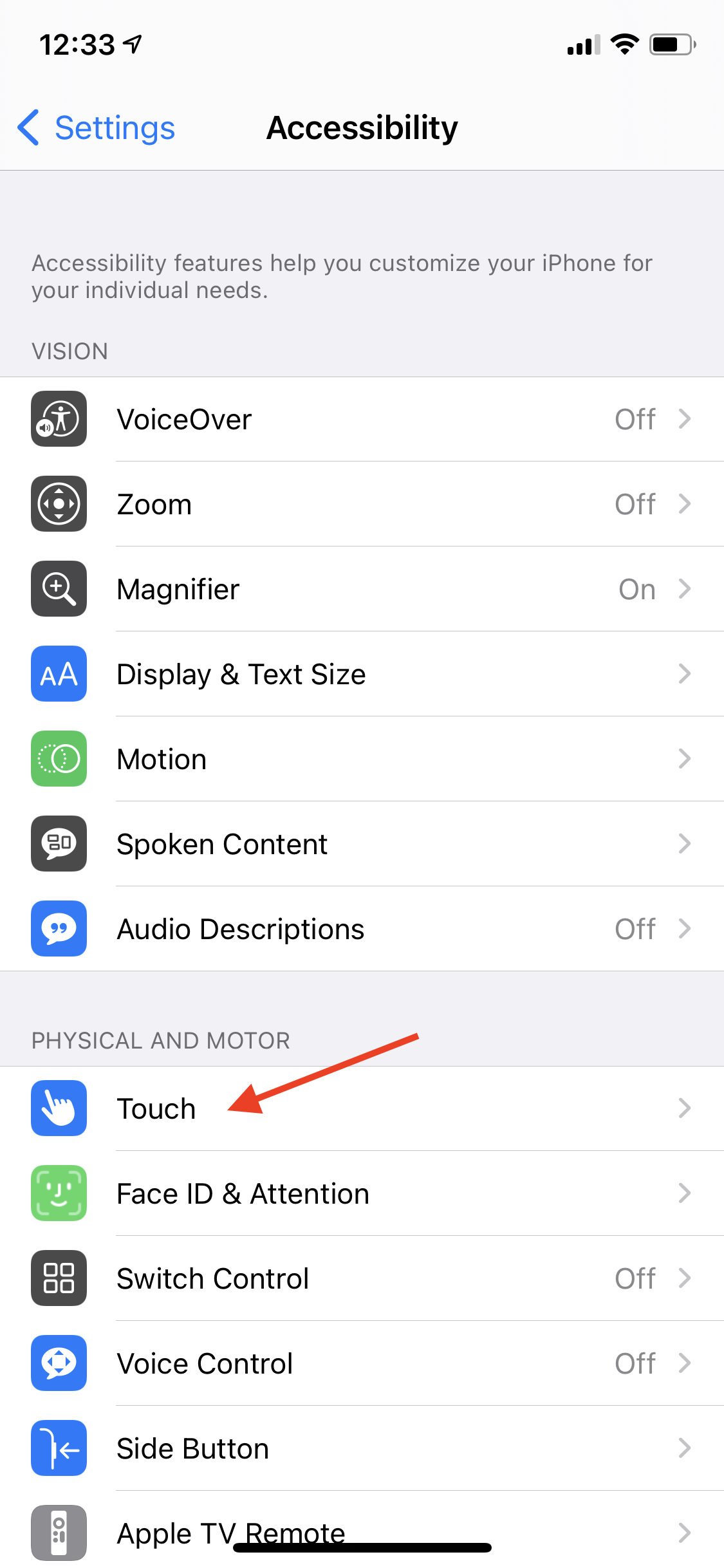
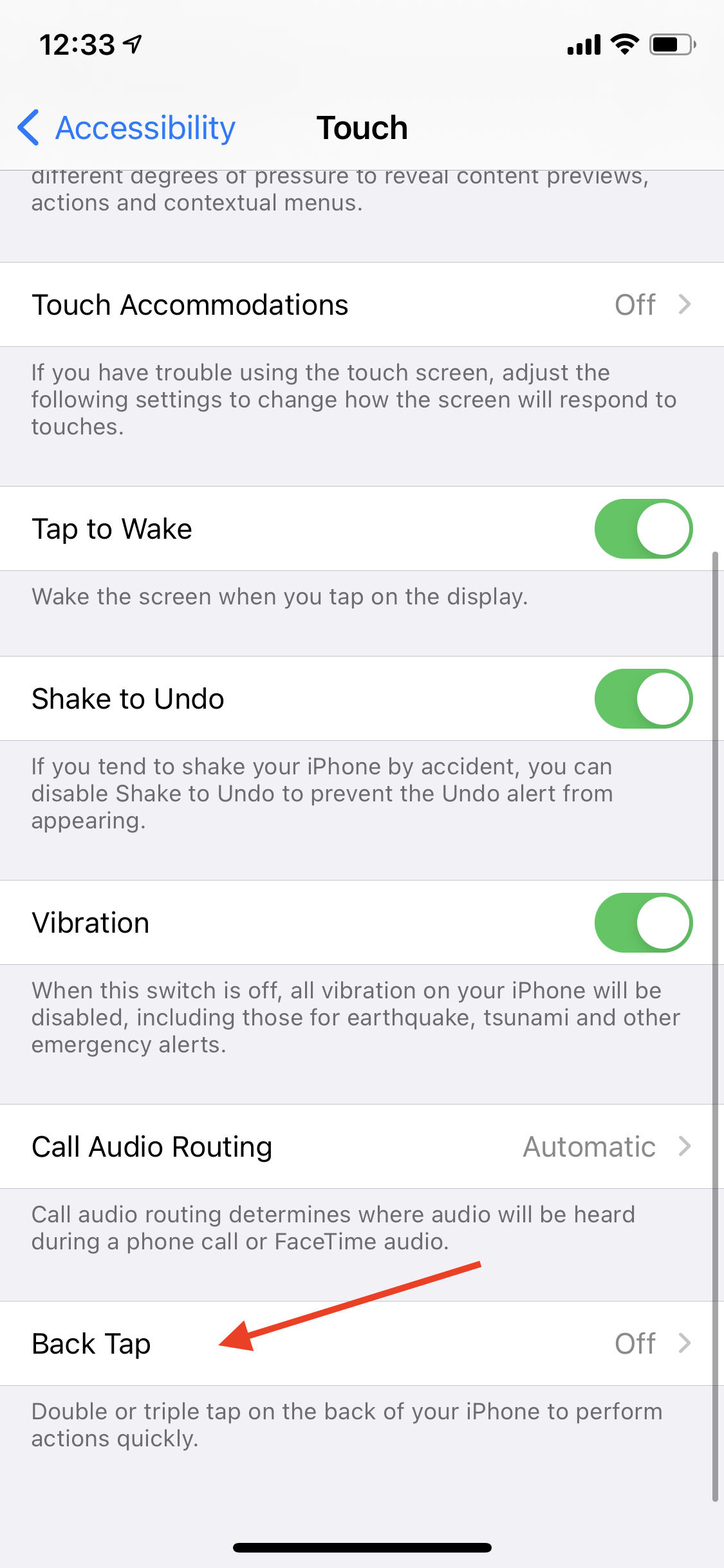
Now we are going to set this Shortcut to run when we double (or triple) tap the back of our phone. Go in to the Settings app, scroll down to Accessibility, and in to the Touch menu. Now scroll to the very bottom and find Back Tap. Here you can select either a Double Tap or Triple Tap as the action you want.
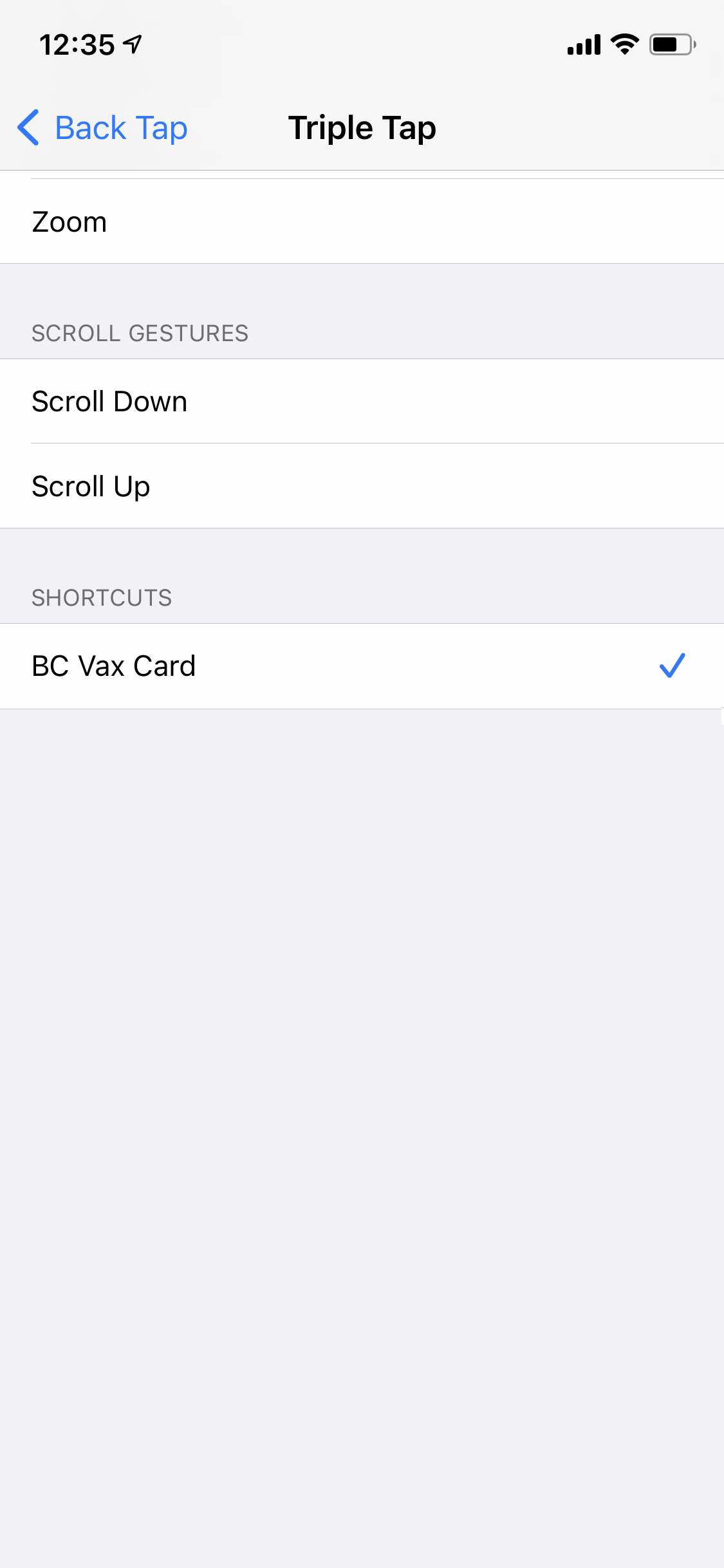
Then scroll down to find the Shortcuts section, and select the shortcut we just made (called BC Vax Card in this example). Right away, you should be able to double (or tiple) tap the back of your phone, and the card should show. You'll have to press the Done button or your Home button to dismiss it.
The Shortcut will run on the Lock screen as long as your phone has been unlocked (you'll be prompted if it hasn't), or from any other screen in any other app.
- Who are you again?
Just some guy who didn't want to see everyone fumbling to find a screenshot from a month ago or a PDF saved to some random place.
- Can't you share an iCloud Shortcuts link?
That requires almost the same amount of work, ie. making sure someone has run a Shortcut at least once, then allowing untrusted Shortcuts in the settings app, then clicking the link and saving the Shortcut. Yeah, an Import Question could take care of the image name, but by that point, it's about the same amount of work as this guide.
- Why not use a Pass in Apple Wallet? Surely it's designed for just such a thing?
Yeah, you'd think so, wouldn't you. Unfortunately, two factors conspire to make that impossible. Firstly, the QR code for the vaccine card is based upon the Smart Health Card standard, which does it's best to generate the smallest payload possible, but it still ends up being ~1.7KB, which is on the large side for a QR code. Secondly, Apple always applies the "medium" error correction level to QR codes on a pass, and only displays them at a fixed size. Both of these combine to make a QR code on the pass that is too small and too dense to be scanned properly (at least by a smartphone when both devices are handheld). More details in this GitHub issue for another service that is trying to achieve this.
- Could this not be built into an App?
It could (and probably should be), but I'm not convinced that even that would be quicker to open than this Shortcut. Could an app make this Shortcut automatically? Probably, but this was hopefully pretty easy, and you learned some stuff about your iPhone.
- Do I need to do that bit with the larger QR code?
Probably not, it should still scan okay from most phones to most phones. If there are issues scanning, bumping up the brightness on your phone is probably the thing that will help the most.


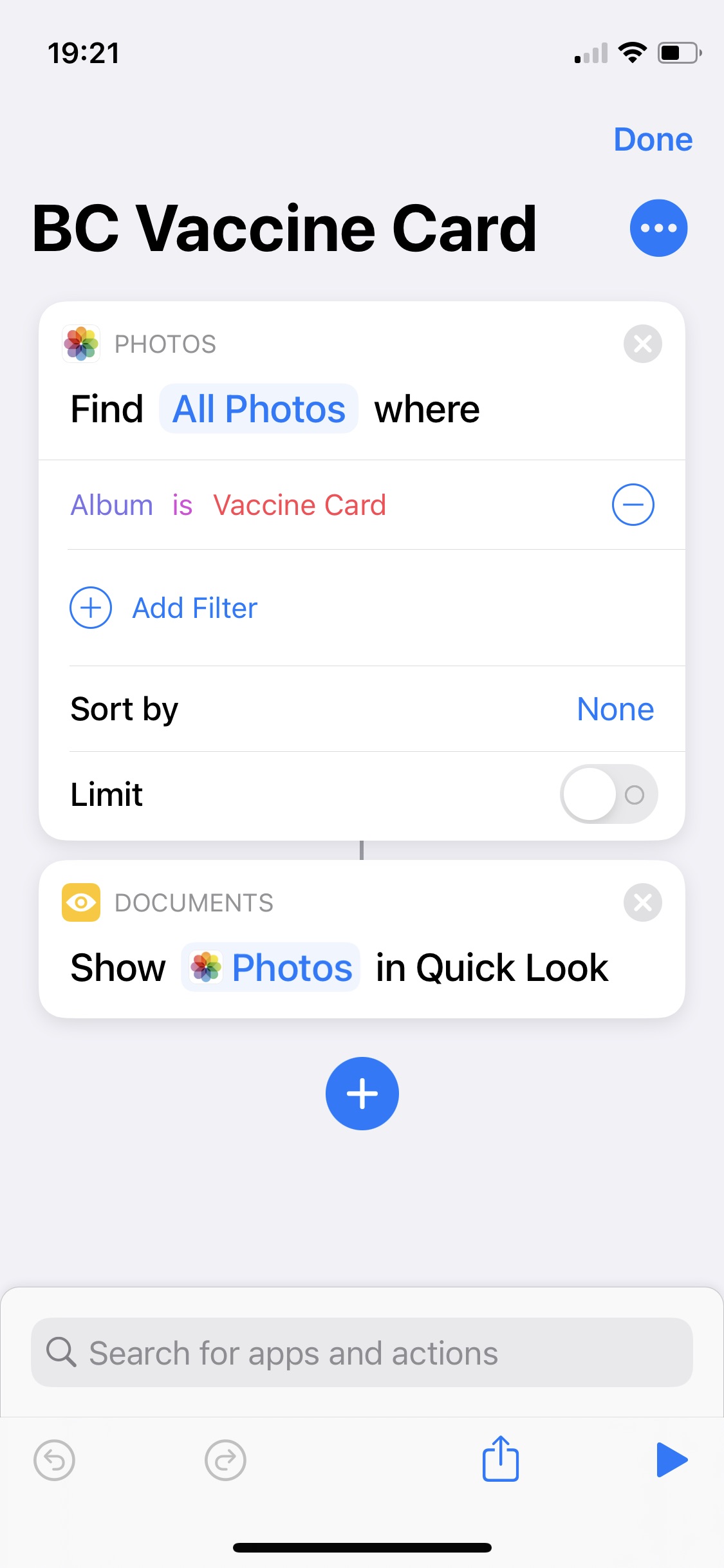
Thanks for posting this! I took a slightly different approach; it's a bit more involved, but gets rid of the issue of dealing with photos with duplicate names.
I screenshotted the pass on my desktop, and base64-encoded the image data. That data is added as a "text" block (redacted in the screenshot above), which is then passed to a base64-decode step, which is then passed to Quick Look.