
-
-
Save fevangelou/46a2885233c45011ad5c8752f18eac73 to your computer and use it in GitHub Desktop.
| #!/bin/bash | |
| # Bash script to install SiS Mirage 3+ graphics drivers on Linux | |
| # Supports 671/672MX graphics cards | |
| # | |
| # Created in March 2019 | |
| # | |
| # Tested on: | |
| # - Lubuntu 18.04 (32-bit) with X.Org v1.19 | |
| # - Xubuntu 18.04 (64-bit) with X.Org v1.20 | |
| # installed on a Fujitsu-Siemens Esprimo Mobile v5535 laptop (specs: https://www.notebookcheck.net/Fujitsu-Siemens-Esprimo-Mobile-V5535.9149.0.html) | |
| # | |
| # Execute as root user with: | |
| # | |
| # $ sudo su | |
| # (then type your password) | |
| # $ cd ~/ | |
| # $ wget --no-check-certificate https://gist.githubusercontent.com/fevangelou/46a2885233c45011ad5c8752f18eac73/raw/79b407db60589d98e78cd131b56a1652756fb7b2/install_sis_graphics_on_linux.sh | |
| # $ chmod +x install_sis_graphics_on_linux.sh | |
| # $ ./install_sis_graphics_on_linux.sh | |
| # | |
| # IMPORTANT: | |
| # If you X.Org version is not 1.20, edit the variable "XORG_VERSION" below accordingly and re-run the script. | |
| # | |
| # References: | |
| # https://github.com/rasdark/xf86-video-sis671 (driver) | |
| # https://ubuntuforums.org/showthread.php?t=2350126&page=4&p=13599531#post13599531 (how-to) | |
| XORG_VERSION="1.20" | |
| # Check for /etc/X11/xorg.conf | |
| if [ ! -f "/etc/X11/xorg.conf" ]; then | |
| touch /etc/X11/xorg.conf | |
| fi | |
| # Install required packages | |
| apt-get -y install build-essential xorg-dev autoconf automake git libtool-bin xutils-dev inxi | |
| # Build the driver | |
| cd ~/ | |
| git clone https://github.com/rasdark/xf86-video-sis671.git | |
| cd xf86-video-sis671/ | |
| git checkout for-xorg-$XORG_VERSION | |
| autoreconf | |
| automake | |
| ./configure --prefix=/usr --disable-static | |
| make | |
| make install | |
| # Check if the drivers were installed | |
| ls -la /usr/lib/xorg/modules/drivers/sis671* | |
| echo "" | |
| echo "" | |
| inxi -G | |
| echo "" | |
| echo "" | |
| if [ -f "/usr/lib/xorg/modules/drivers/sis671_drv.so" ]; then | |
| # Setup the SiS graphics driver | |
| cat > "/etc/X11/xorg.conf" <<EOF | |
| Section "Device" | |
| Identifier "Configured Video Device" | |
| Driver "sis671" | |
| EndSection | |
| Section "Monitor" | |
| Identifier "Configured Monitor" | |
| EndSection | |
| Section "Screen" | |
| Identifier "Default Screen" | |
| Monitor "Configured Monitor" | |
| Device "Configured Video Device" | |
| EndSection | |
| EOF | |
| # Now reboot | |
| echo "" | |
| echo "" | |
| echo " *** The installation for SiS graphics drivers is now complete *** " | |
| echo "" | |
| echo " === --------------------------------------------------------- === " | |
| echo " === PLEASE REBOOT YOUR SYSTEM NOW === " | |
| echo " === --------------------------------------------------------- === " | |
| echo "" | |
| else | |
| echo "" | |
| echo "" | |
| echo " *** The installation for SiS graphics drivers FAILED *** " | |
| echo "" | |
| echo " === ---------------------------------------------------- === " | |
| echo " === Check your X.Org version! === " | |
| echo " === ---------------------------------------------------- === " | |
| echo "" | |
| fi |


Screenshot of SiS 672 on Xubuntu 20.04 (64-bit):
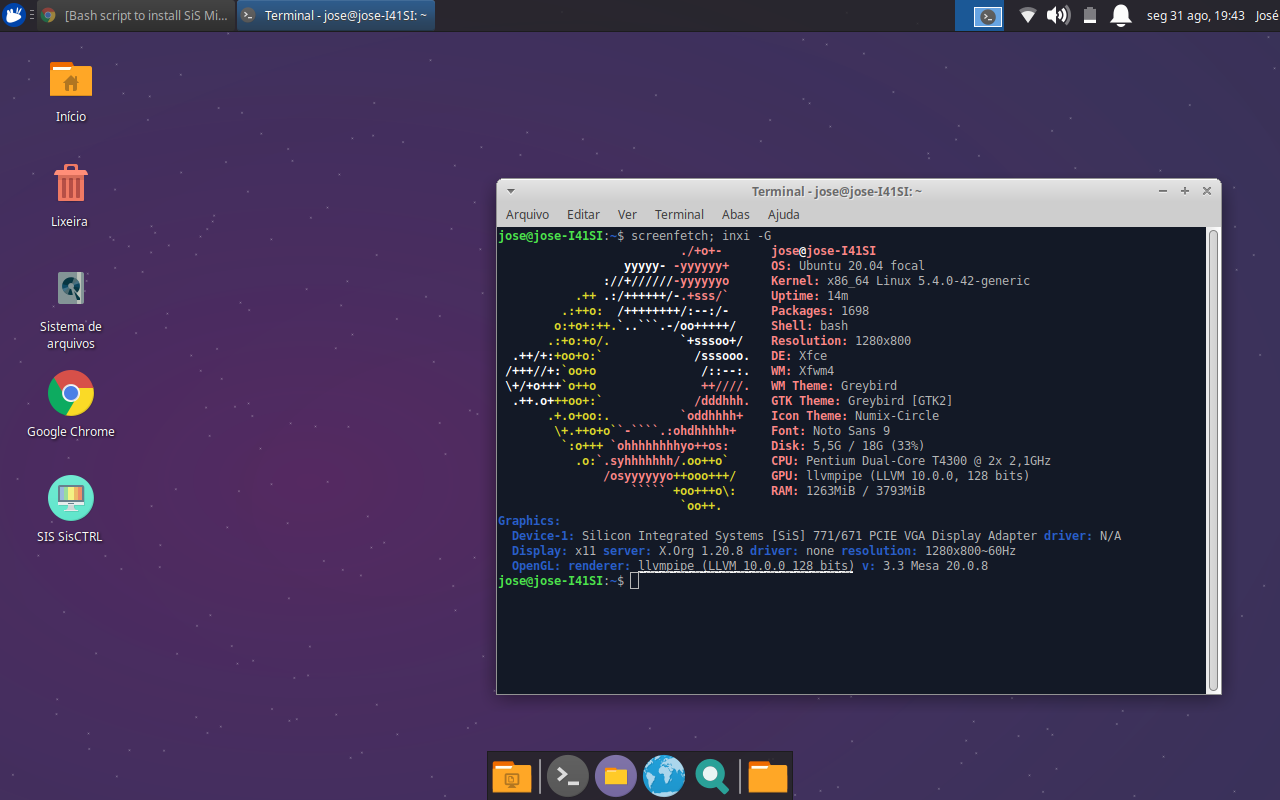

Thanks a lot this is the only real script that works on my Fujitsu Esprimo 550 laptop with ubuntu/xubuntu 18.04.5.
Greate.
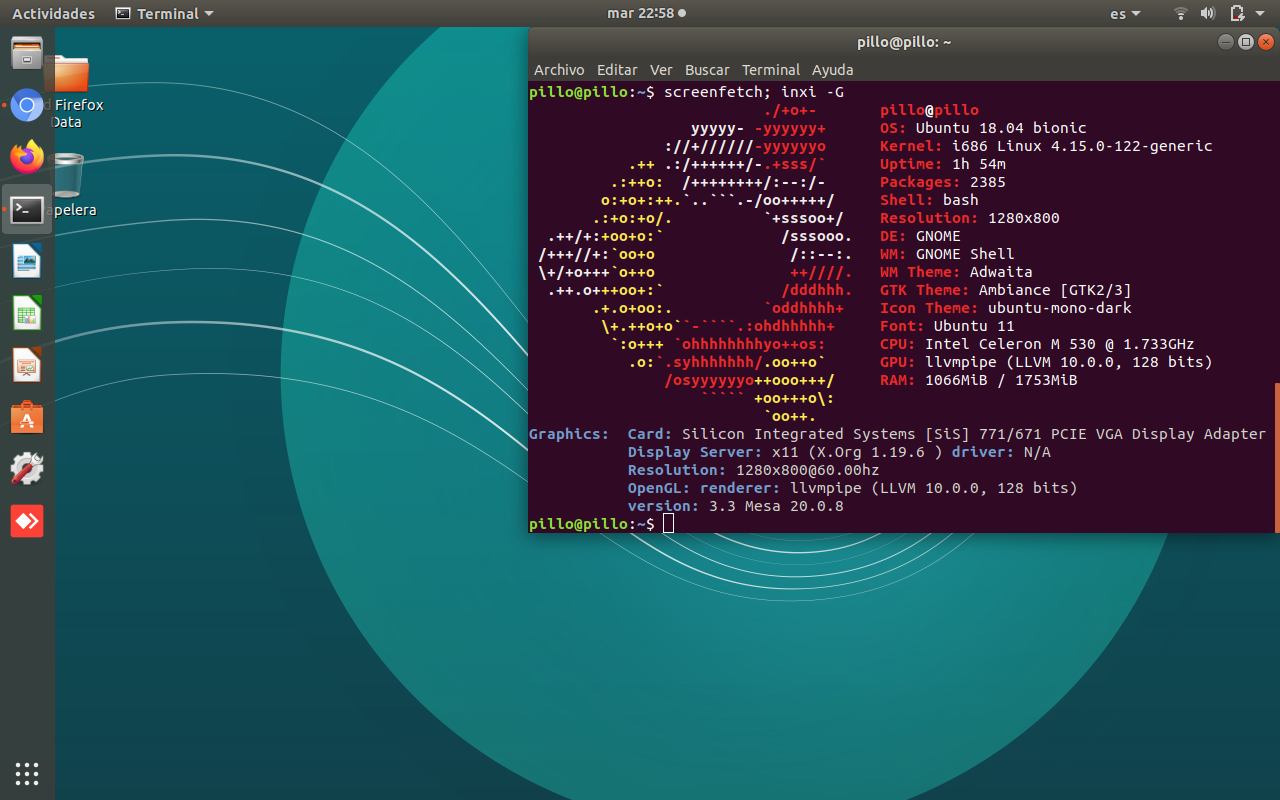

Great 👍

Thank you very much! This works beautifully on Linux Lite 5.2 on my Asus X58C.


Hi, can someone follow me step by step on how to install this driver.
I didn't understand from line 23 onwards. Thanks
Hi, can someone follow me step by step on how to install this driver.
I didn't understand from line 23 onwards. Thanks
Hi.
You need to run the script.
sudo ./install_sis_graphics_on_linux.sh
Ok done

Hi,
I run your script in my Esprimo Mobile v5535 laptop and it works. But after some minutes, the screen freezes. In fact that's not really the screen as the mouse still moves. But the UI (gnome? Xubuntu 20.04) doesn't respond to mouse click. The time still goes on.

Wow. Just wow. The hours, nights, days, weeks I had spent in the past to get the various old drivers for that graphic card to work, reading blog posts, downloading drivers from mandriva and other distbitutions, tweeking xorg config files until the small hours, just to discover that after the next Debian upgrade I was back to the vesa drivers, fuzzy fonts and distorted display. Now, several years after having given up on the laptop, to prepare a separate laptop for my children during lockdown, I discover that somebody has written drivers, and there's even a bash script (this one) for easy download, compilation and installing. And it works out of the box, on my old Esprimo 5535!
I'm speechless.
Pity there is only one star on github to give you. You deserve twenty, at least.
Million thanks!
@jkanev Well, I'm glad it helped a few people 😃

@jkanev Well, I'm glad it helped a few people 😃
You just helped a friend of mine. Starred.

Works on xorg 1.20 with xorg.conf from ubuntu folder (look here https://github.com/rasdark/xf86-video-sis671).
Peppermint based on Ubuntu 18.04.
Asus K50C with Silicon Integrated Systems [SiS] 771/671 PCIE VGA Display Adapter (chip-ID: 1039:6351)
Thanks again @fevangelou for this script. It is working just fine on my Asus X58C with Linux Mint 20.1 xfce.
There is one issue that may need some attention. When following the instructions inside the script shown in the first post of this thread something did not work as expected. Further investigation showed that the command
wget --no-check-certificate https://gist.githubusercontent.com/fevangelou/46a2885....
downloaded a script with different contents than that shown in the script in the first post. I then copied the contents of the script in the first post and pasted it into a editor and saved it locally. The script then worked fine and created the files needed to used the SiS display on this PC.

@JaquimoSwallow I'm glad it's working for you and thanks for the feedback. To be honest though, I did test the Gist URL and it's fine. Perhaps there was some other issue that prevented you from using wget with that Gist URL. But I can verify the URL is correct.
@fevangelou Thanks for your reply. The wget and URL works fine but the contents of the file that is downloaded differs from the script in the first post. Thanks again.


@fevangelou - Hey Man, Thanks a lot for your work!!! im really happy now!
so cool that people do still workarounds for old (still quite usable) machines!!
i still have exactly the same computer, the Esprimo v5535 with SIS graphics chip, with ubuntu 20.04 in 2021 :-P
i was annoyed that a still working machine cannot be used with ubuntu just because of missing driver support....
the vesa driver just worked up to eye-cracking 1024x768
and with your script i could finally change the resolution to 1280x800.
im not shure it works properly, video playback is still poor, (youtube etc) and not fluent at low resolutions... same as with vesa driver at 1024x768, or maybe a bit poorer. shure, its an antique machine, it may result from the higher resolution...
is there a way to accelerate video playback? maybe by setting lower frame rates instead of 60 Hz? oder depth?
can i check somehow if hardware accelation is used properly
i also re-installed the restricted 3rd party codecs after not setting that during the ubuntu installation
greets Georg
update: video playback with mpv player:
the mpv player uses vaapi hardware acceleration, and it plays a downloaded Mpeg4 video absolute fluently! ~30fps
the standard video player doesnt use hardware acceleration i read, and plays the same downloaded file with about 5 fps very poor.
so does firefox and chrome, streaming the same file reaches also only about 5fps
in firefox via about:config i activated vaapi, but it did not show any increase of performance.
so i think the poor video performance is a browser problem, or a problem of not implemented hardware acceleration
probably as nowadays cpus are fast enough...
graphics driver seems to work!

Not work on my fresh lubuntu 18.04, the console doesnt recognize all the command, also puppy linux too

Hi. Thanks a lot! This worked for me in Sparkylinux (light debian based distro). I was able to revive a 10+ year old BGH laptop, with excellent image and decent performance. The line "git checkout for-xorg- $ XORG_VERSION" was not recognized and I modified it with the xorg version manually (git checkout for-xorg-1.20) In my particular case.


Working on Debian 11 X86_64.
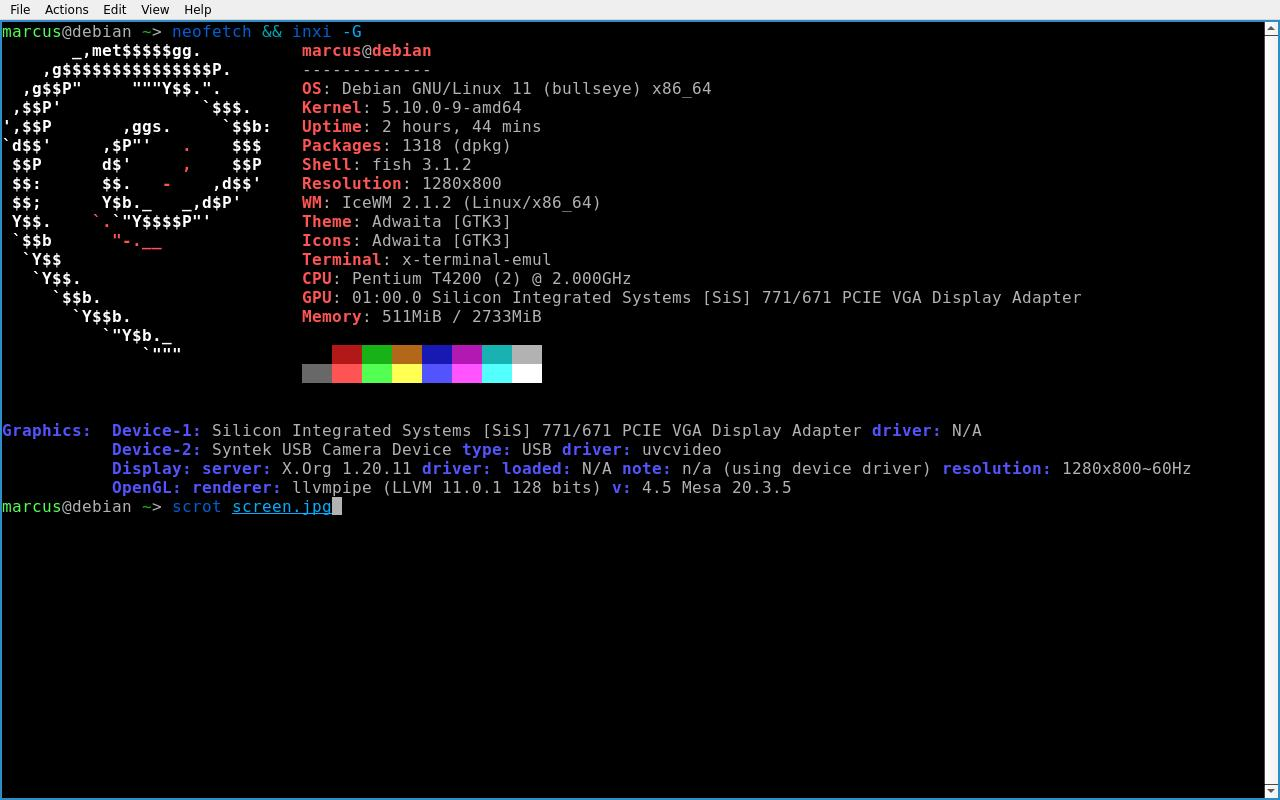
Awesome :)

thank a lot, works on notebook a-note ca-8271 on xubuntu 18.04.5-i386
for any one got log failed to load module sis671 module missmatch, just add on xorg.conf
Section "ServerFlags"
Option "IgnoreABI" "True"
EndSection

does anyone has tried to install it on sis 672 gpu?
Im confused, i ever run the script but the resolution become ugly, sometimes can 1366x768, but sometimes 1024x768 after booting, can someone share with me?

Hi, I must say I was very excited when I got here.
But, there is always a but, when running the script I got this error.
Makefile:530: fallo en las instrucciones para el objetivo 'sis_driver.lo' make[1]: *** [sis_driver.lo] Error 1 make[1]: se sale del directorio '/root/xf86-video-sis671/src' Makefile:445: fallo en las instrucciones para el objetivo 'install-recursive' make: *** [install-recursive] Error 1 ls: no se puede acceder a '/usr/lib/xorg/modules/drivers/sis671*': No existe el archivo o el directorio
So, saw that the script had a it checkout for-xorg-1.19 hardcoded, changed that value to 1.20 and install could be finished.
However, after reboot system stucked in a black screen.
This is one of several desktop PC we have at the school
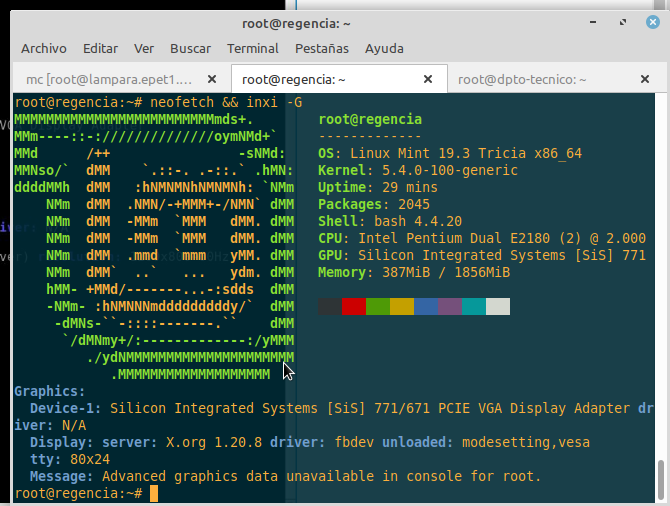


ASUS X58C
Thank you a lot for this script, hello from Ukraine!

Easy Note mx37t070it
Many Thanks for your hard work, wish this could be done on a more recent version of Lubuntu
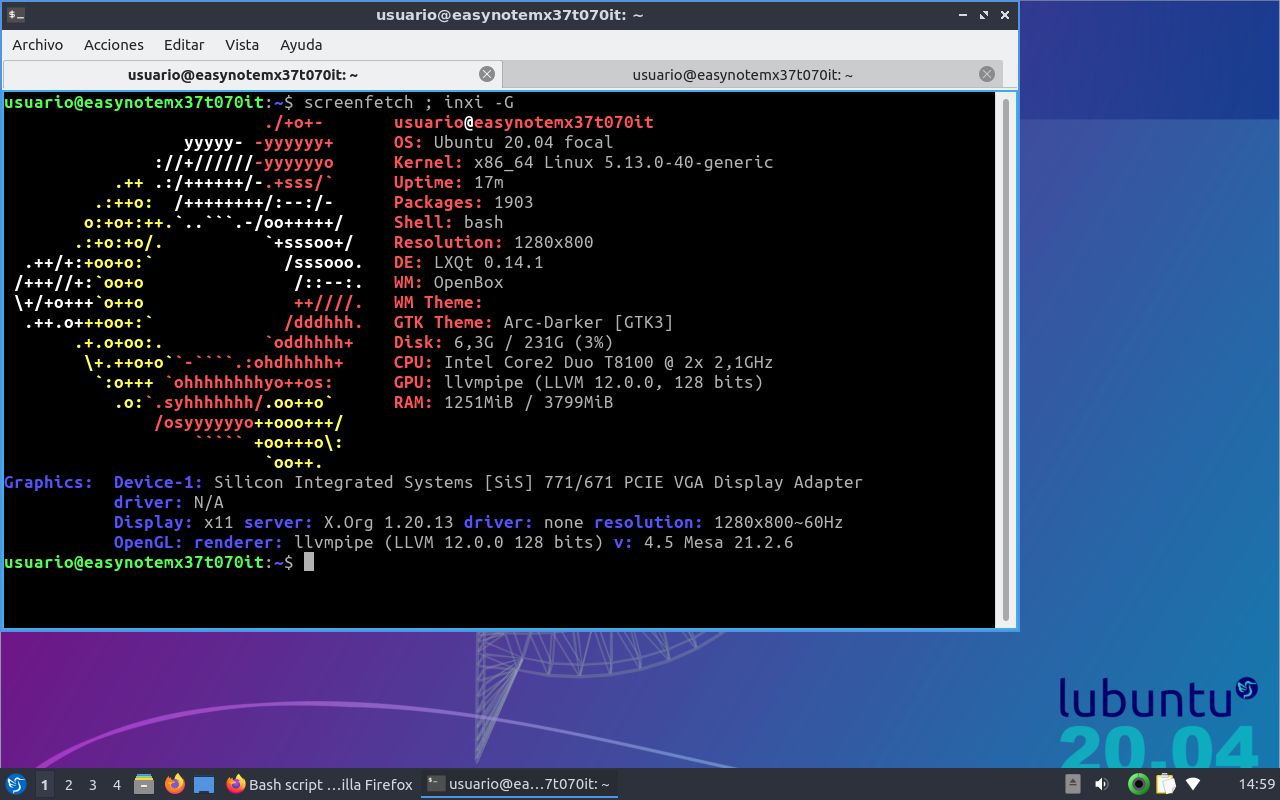
@rasdark From Venezuela 完全感谢
greetings, had to switch to bodhi, in lubuntu had to boot with "nomodeset" manually but then after a while wanted to make the change permanent so I installed grub customizer and also installed laptop mode tools and something happend, don't know what, but kept booting as if it had no "nomodeset" in the boot syntax... weird...
bodhi doesn't need no "nomodeset" at all... it just worked... vesa during setup and now with the driver, thanks to whomever worked on bringing this driver this far, thanks from Venezuela.
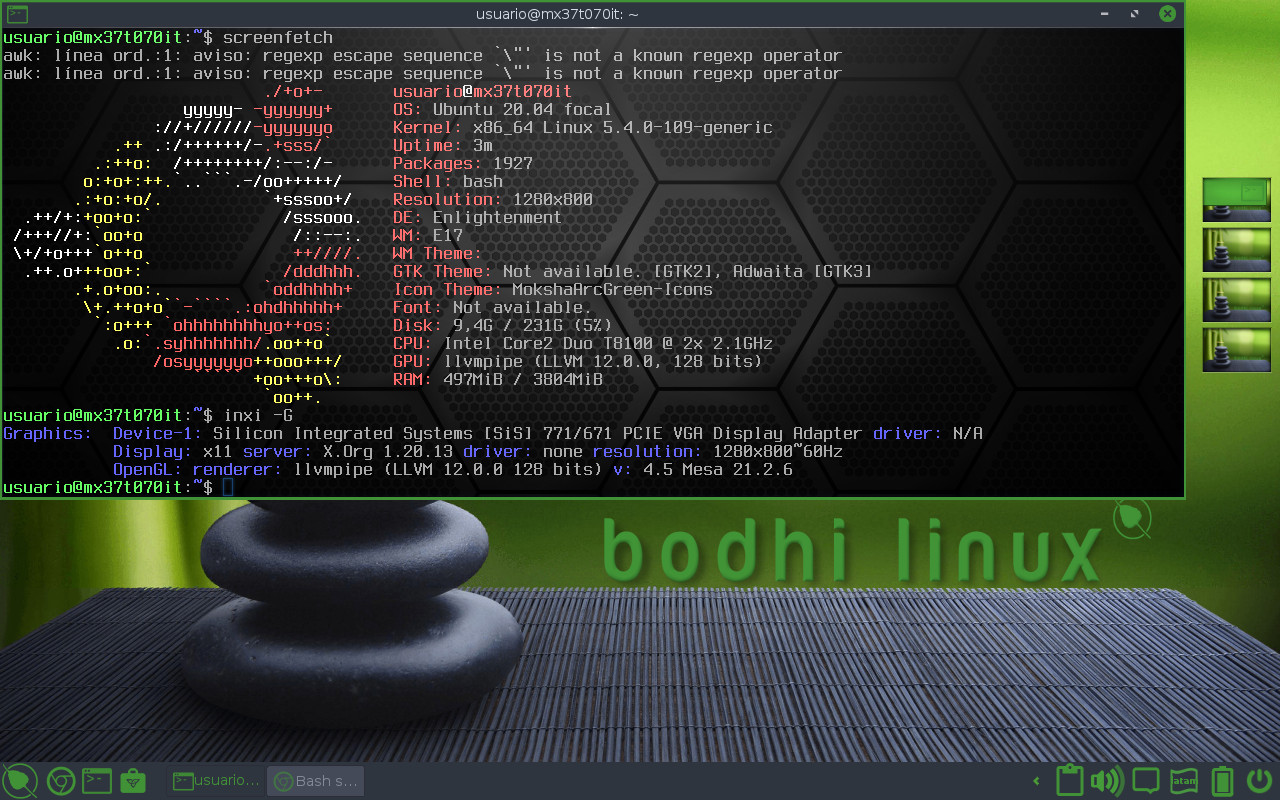

@fevangelou, Thank you. It worked on a Haier 2006 laptop.

Working on a Bangho B-76X0S, Linux mint xfce 20.2 uma

Just a little question, is graphical performance tied to the CPU processing power? Because dragging windows lags the whole system (My notebook has only one core)
Also, dose anyone know of any "hack" to get hardware acceleration on ANY Linux distro with SIS graphics?
Or, is there any Linux distro (open or closed source) that has hardware acceleration with SIS graphics?
It's really sad to see Windows 7 outperform Linux...

Hi
Thank you for this solution! I already use it with Q4OS and Trisquel Mini and it works perfectly. Both distributions have xorg 1.20
Now I wanted to apply the solution to Runtu Light as well, but it doesn't work. The boot is hanging and X is not started. The two drivers are in the folder usr/lib/xorg/modules/drivers and in etc/x11 is xorg.conf. Everything looks correct. There is no error message during installation.
But the xorg version is 1.21 , not 1.20 or 1.19 ! Runtu Light is based on Ubuntu 22.04.
Can anyone help further?

Hi
Thank you for this solution! I already use it with Q4OS and Trisquel Mini and it works perfectly. Both distributions have xorg 1.20
Now I wanted to apply the solution to Runtu Light as well, but it doesn't work. The boot is hanging and X is not started. The two drivers are in the folder usr/lib/xorg/modules/drivers and in etc/x11 is xorg.conf. Everything looks correct. There is no error message during installation.
But the xorg version is 1.21 , not 1.20 or 1.19 ! Runtu Light is based on Ubuntu 22.04.
Can anyone help further?
I have this problem too. My Xorg version is 1.21.1.7 and i get Check your X.Org version! error. Did you managed it?
No, unfortunately I could not solve it. I don't have enough knowledge about this. But with Q4OS trinity and Trisquel Mini it is working fine, as there the X is 1.20. Maybe you have to change the distri?
No, unfortunately I could not solve it. I don't have enough knowledge about this. But with Q4OS trinity and Trisquel Mini it is working fine, as there the X is 1.20. Maybe you have to change the distri?
Well I installed Lubuntu 18.04 to make it work. I hope it could run Archlinux but now Lubuntu is my only choice.

23/03/2024 instalado em Positivo Mobile Z77 (SIS 667)
Linux MX-21 64 bits
perfeitamente funcional
Gratidão pela solução.

Please help me I am new to Linux and I don't understand the commands I'm doing this on my Q4OS linux

After

Before

In debian 12 bookworm edit this script line to this version XORG_VERSION="21.1"
worked for me with dwm, i finally can get the resolution 1280x800 in linux

Hi!
I have set this up on an old Fujitsi Esprimo Mobile V5555.
When setting UseTiming1366 to "yes", "True" or anything like that, the screen will be blank after a reboot, sometimes colorful lines will be visible, and I'm not even able to switch to an other virtual terminal.
When that line is commented in the config, it works, however its not really usable. A fresh Mint Xfce system is heavily lagging even with just a terminal and btop inside it opened, set to update every 2 seconds. The X.org process is often at 100% on its core when doing this, but never below 50%.
Interestingly, the Mint LiveCD (running from a pendrive, through Ventoy) does not lag from running a terminal alone. With the same "workload", the X.org process is working at around 10% or less (per core, on a single core).
Its also weird that this LiveCD did not even need any drivers to be added manually, it just worked by itself, I only needed this repo's driver for booting the installed system.
Can someone help find out why do I need the driver if the LiveCD worked fine?
And also, the reason for why does the installed system lag while the LiveCD doesnt.
Here is my graphics hardware, to make sure I'm at the right place:
Graphics:
  Device-1: Silicon Integrated Systems [SiS] 771/671 PCIE VGA Display Adapter
    driver: N/A
  Display: x11 server: X.Org v: 1.21.1.4 driver: gpu: N/A
    resolution: 1280x800~60Hz
  OpenGL: renderer: llvmpipe (LLVM 15.0.7 128 bits)
    v: 4.5 Mesa 23.0.4-0ubuntu1~22.04.1

Hi everyone, I'm trying this tool on an Olivetti OlivoBook P1500 with Sis Mirage 3 and Zorin OS 17, but I can't make it work, at the end of the procedure the message "Please reboot your system now" appears, I restart the PC but nothing changes, does anyone know how to help me?
Oh, forgot about this.
If you have the same graphics device, the final solution for me was not to use this repo's driver, but to tell X to use the VESA driver.
For that, in the Xorg config file, in the Device section, I have repalced the value of the Driver setting with vesa. After a reboot (maybe even a relogin) it should work.
I have found this solution on the Mint forum: https://forums.linuxmint.com/viewtopic.php?t=266554
Hi, i have followed this tutorial but didn't work. My laptop card is different from 671, here's my inxi -G:
gabrio@AspireLXDE:~$ inxi -G Graphics: Card: Silicon Integrated Systems [SiS] 661/741/760 PCI/AGP or 662/761Gx PCIE VGA Display Adapter Display Server: x11 (X.Org 1.20.5 ) drivers: fbdev (unloaded: modesetting,vesa) Resolution: 640x480@73.00hz OpenGL: renderer: llvmpipe (LLVM 9.0, 128 bits) version: 3.3 Mesa 19.2.8