Skip to content

Instantly share code, notes, and snippets.

@KhaosT
Last active December 5, 2025 16:59
Show Gist options
  • Select an option

  • Save KhaosT/1406a6b6bea38f59e059c2afcb39d545 to your computer and use it in GitHub Desktop.

Select an option

Save KhaosT/1406a6b6bea38f59e059c2afcb39d545 to your computer and use it in GitHub Desktop.
Make your own Touch ID Button

Tools Needed

  • iFixit iOpener Set
  • T4 Screwdriver
  • T3 Screwdriver

Steps

  1. Soften adhesive using iOpener IMG_1610

  2. After about 60~90 seconds, use Opening Picks (or a slot screwdriver that's thin enough to fit) to pry open the back cover from upper right corner IMG_1611

  3. Apply more forces to completely remove the back cover IMG_1612

  4. Disconnect the battery IMG_1614 IMG_1615

  5. Remove the screws (T4) that keeping the black plate attached to the frame and remove the black plate

  6. Disconnect all 3 connectors from the logic board and take out the logic board from the Keyboard frame IMG_1616 IMG_1618
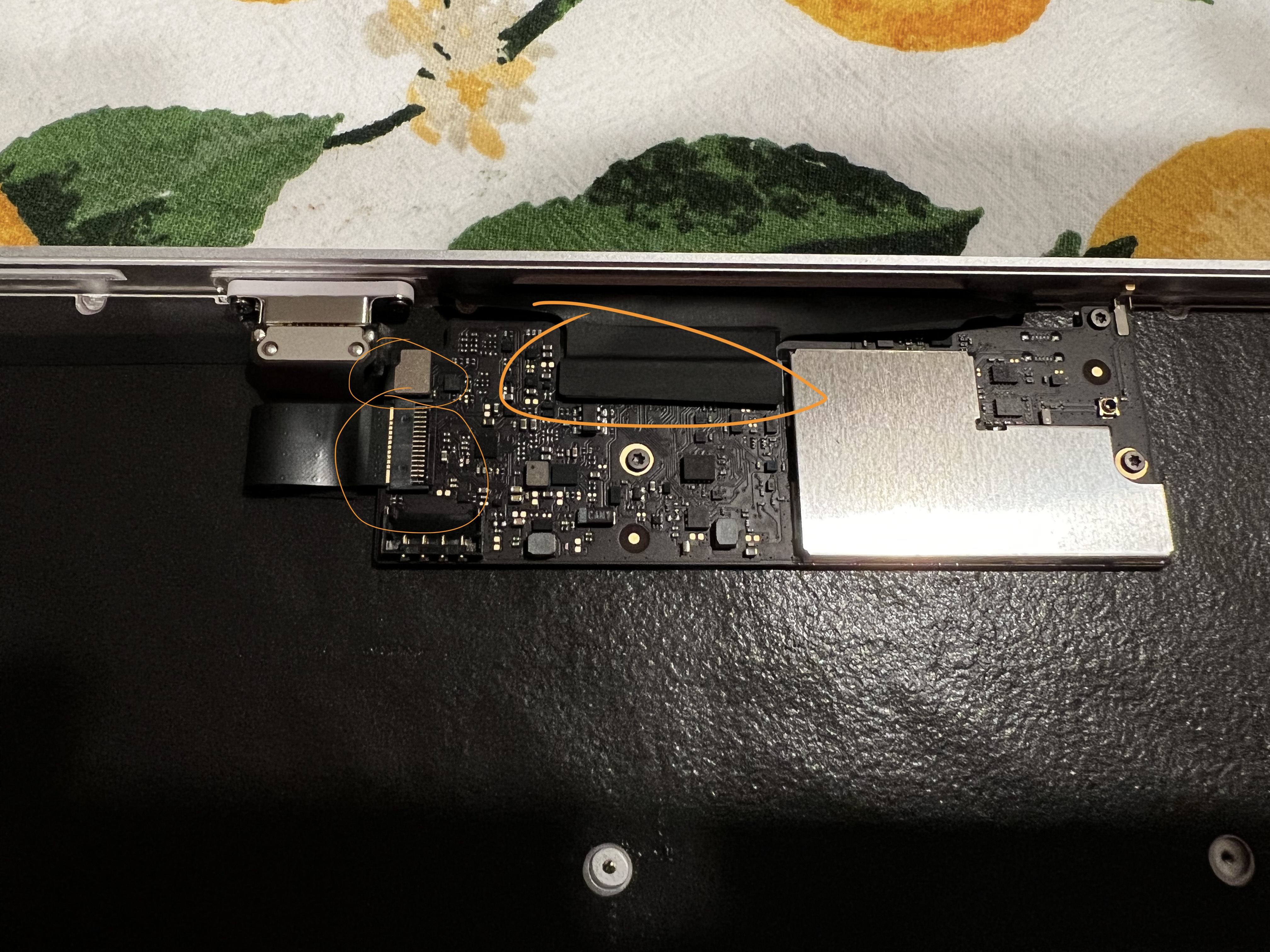
  7. Remove the Lightning connector (T3) IMG_1620

  8. Remove the power switch from upper left corner (T3)

  9. Carefully remove the sticker(?) from the connector and disconnect Touch ID sensor from the connector IMG_1621
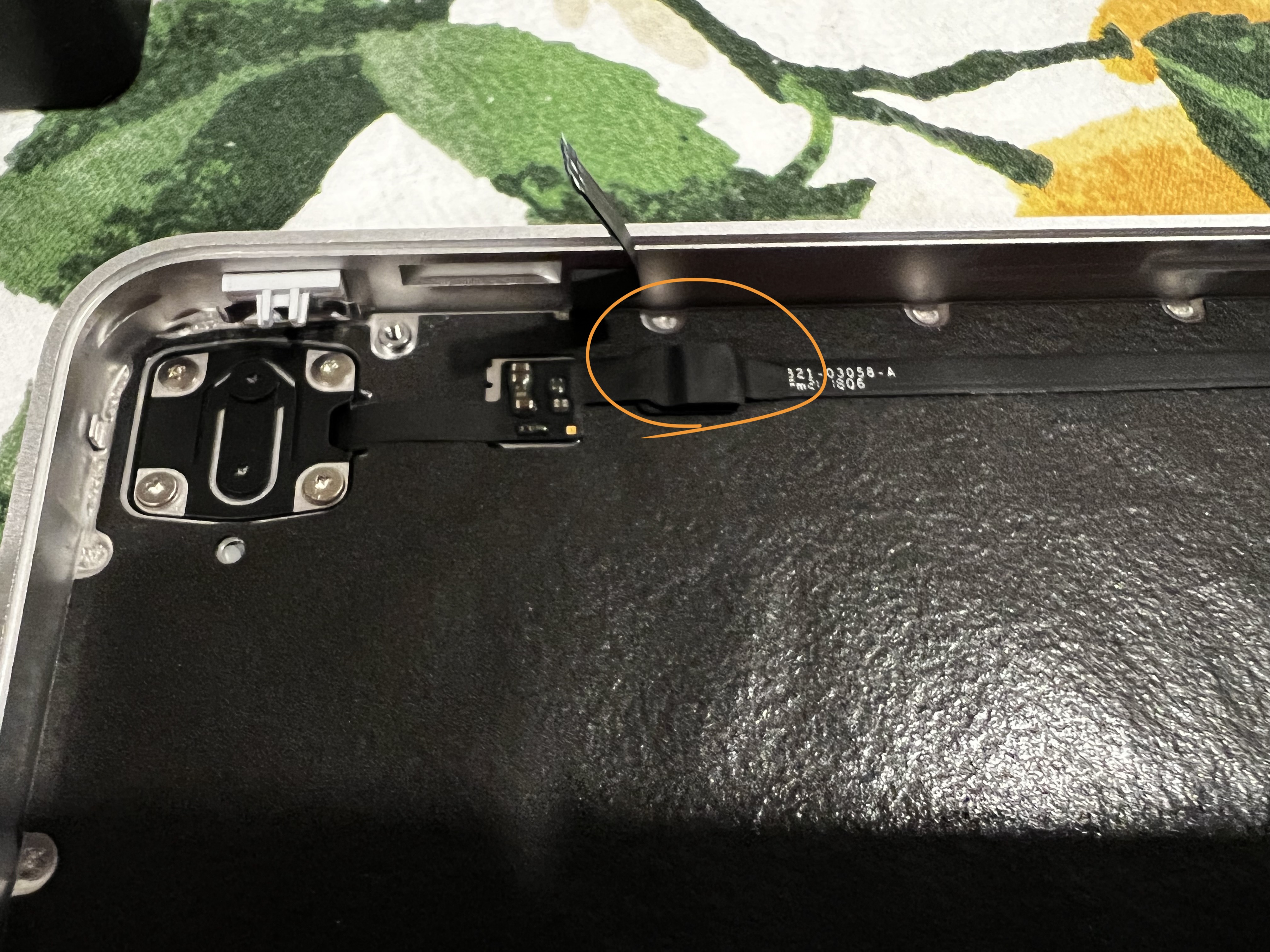
  10. Unscrew the mounting screws around the Touch ID sensor (T3), and remove the Touch ID sensor L1030076

  11. Carefully remove the flex cable used to connect Touch ID sensor

Now you have all the parts to put together a standalone Touch ID device for your Apple silicon Mac.

After connecting the Lightning connector and Touch ID sensor back to the logic board, you can pair the Touch ID sensor with your Mac under System Preferences.

If the pairing step doesn't appear when you go to Touch ID settings -> add a new fingerprint, make sure the Touch ID sensor is correctly connected and try power cycle the Touch ID device.

@humza2000
Copy link

IMG_0317 Done! 3d files: https://www.printables.com/model/399770-touch-id-keycap-for-mechanical-keyboard More photos: IMG_0300 IMG_0294

it wont let me upload new photos :(
this is what the io and insides look like:
IMG_0300
IMG_0294

@humza2000
Copy link

IMG_0915
IMG_0916

@humza2000
Copy link

IMG_0917

@cubuspl42
Copy link

I followed the tutorial, and the button is working in general. But I have an issue. Once or twice a day, after a break from using my MacBook, the extracted Touch ID button seems to stop working. The Magic Keyboard is seen in the System Preferences. The issue goes away after reconnecting the Lighting cable, but I have to input the password manually at least once in such a case. Does anyone have the same problem?

@spkane
Copy link

spkane commented Jun 27, 2024

I'm so dumb, I teared appart the battery cable when removing the backplate, does anyone knows where can I buy one ? or find a way to replace it 😭

The battery is model number A1645

You can find them online: https://www.google.com/search?q=a1645+battery

@krubenok
Copy link

@spkane - you don't need the battery for this to work. I removed it and only use it powered over the lightning port. macOS will just report it being at 0% all the time.

@spkane
Copy link

spkane commented Jun 27, 2024

@spkane - you don't need the battery for this to work. I removed it and only use it powered over the lightning port. macOS will just report it being at 0% all the time.

Thanks. I know that. Indeed, you only need it if you want it to remain wireless.

I was just answering the older post about where you can get a replacement if you want one. The batteries are online, both originals and cheaper knockoffs.

@spkane
Copy link

spkane commented Jul 6, 2024

Would anyone happen to have a model that encapsulates the battery as well?

These are some options that include the battery.

https://www.printables.com/model/885599-clickable-touch-id-box-tkl-board-wireless-version
https://www.printables.com/model/307249-mac-keyboard-touchid-button-case-with-battery

@spkane
Copy link

spkane commented Jul 10, 2024

Another note for others, some/many of the 3d printed boxes expect you to have some of the screws and the spring plate, so you may want to avoid throwing things away until you have reassembled everything as you want it.

@alexmakus
Copy link

alexmakus commented Jul 28, 2024

I love Apple Extended Keyboard II, and I use it everyday with my Mac. So naturally I wanted to improve it with a Touch ID — and I finally did, using this tutorial, some other videos and some creativity. After retrieving the components, I mounted them at the bottom of my AEKII
IMG_8465
(it required some trimming of plastic molds but nothing major)

I had to cover the battery with some extra layer of thick paper to prevent it being poked by the soldered ends from the PCB:
IMG_8467

I used one of the port openings on the side for installing the Touch ID sensor
IMG_8466

In a typical Apple fashion, I did the Lighting port at the bottom — I figured I don't need to charge it too often, so it will do.

I paired it with my Mac, and it works, which is kind of amazing! :)

Thank you everyone for a ton of input here, it definitely helped me not to screw up things.

@alexmakus
Copy link

The picture from the bottom
IMG_8464

@GregoryBai
Copy link

@alexmakus Wow, do you have a full pic of your gorgeous m0118?

@alexmakus
Copy link

@alexmakus Wow, do you have a full pic of your gorgeous m0118?

IMG_8480-2048x1152

this is the end-result, although I'm considering moving the Touch ID sensor inside.

@meirtolpin11
Copy link

Is it possible to use a third-party battery? I want to integrate the touch sensor into a wireless split keyboard and I don't have enough place for the mac keyboard battery...
Is it possible to solder another battery or it should be exactly the same battery with apple's connector?

@ArminCoin
Copy link

Would anyone happen to have a model that encapsulates the battery as well?

These are some options that include the battery.

https://www.printables.com/model/885599-clickable-touch-id-box-tkl-board-wireless-version https://www.printables.com/model/307249-mac-keyboard-touchid-button-case-with-battery

Is there a reason why no cases have a power switch? All of the cases with batteries are always on, or am I wrong??

@swierzbicki
Copy link

Is there a reason why no cases have a power switch? All of the cases with batteries are always on, or am I wrong??

@ArminCoin This is really good question. I am wondering about it too. Of course it is not a problem. It's always on and you can charge it via lightning cable. But it would be nice to have power off button. Just in case 🤷🏻‍♂️ If you dont want to use it - disable the device :)

I am also curious about the battery. I've seen a videos where they just extracted a cable connector without battery. But after reading this thread i'm almost sure that we can also use it battery and because of that - it's possbile to use this touch id without cable connection?

Am i right?

@alexmakus
@humza2000
@matthewryan

@alexmakus
Copy link

I’m not entirely sure what this question means — “ it's possbile to use this touch id without cable connection?” Do you mean, if it’s possible to connect it with a Lightning cable but not to have a battery connected?

@swierzbicki
Copy link

swierzbicki commented Dec 6, 2024

@alexmakus Sure. I can explain.

Use touch id without cable connection -> "use touch id WITH battery, without connecting the USB/lightning cable".

I hope this explains what i wanted to say 😄

But before you wrote i found the answer. So basically if i understand correctly.

**It's possible to use touch ID with battery ** and connect it via bluetooth.

And the reason why some of us do not put the battery to their new 3d printed cases is that case would be bigger instead of having just a touch id, motherboard inside the case.

@alexmakus
Copy link

Ah, I understand. Yes it is possible, it’s a Bluetooth keyboard after all :) however, and that’s where the “power switch” part comes in. If there’s no easy way to turn the keyboard off/on, if you need to pair it with a new computer, the easiest way to do so is to connect it with a Lightning cable. That’s when the pairing happens and Touch ID will be recognized.

@swierzbicki
Copy link

@alexmakus

it’s a Bluetooth keyboard after all
Yup. But first two video i've seen showed version without battery and i was wondering... why? 🤷🏻‍♂️

however, and that’s where the “power switch” part comes in

True.

I've bought a used Magic Keyborad with touch id. And i will try to do separate touch id module.
Unfortunately i don't have 3d printer to test and prepare enclouser with power switch 🥺

@taneshin
Copy link

Anyone experimented with switching the lightning connector out for a usb c one?

@thunder-god-cid
Copy link

I managed to tear the ribbon cable between the mainboard and the touchID sensor. Anyone found a replacement?

@sunxkui
Copy link

sunxkui commented Jun 1, 2025

IMG_1130
IMG_1166
108key,A2520 Controller

@dir
Copy link

dir commented Jun 5, 2025

Wrapped mine up today, not really a hardware guy so it was a bit tougher than I'd like to admit. But, with a bit of patience, we got there!

I used a USB-C TKL Magic Keyboard, and the housing is the Clickable Touch ID Box 3D print model.

IMG_0470

@cosmicbuffalo
Copy link

I managed to tear the ribbon cable between the mainboard and the touchID sensor. Anyone found a replacement?

I just did the same... still searching

@spkane
Copy link

spkane commented Aug 9, 2025 via email

@millerjason
Copy link

I've had no issues with the lightning connector on two of these, but I cannot get either of them to work wireless via Bluetooth.

For someone who has successfully accomplished wireless, I have a few questions:

  1. you do not need the power switch and connector (and prior position does not matter),
  2. you do not need anything from the keyboard ribbon cable (and did not short any of those lines for power), and
  3. you did not need to connect a new antenna (just using the board itself)?

The behavior I am seeing is that if I connect via lightning then the battery will charge, but when I disconnect the cable it does not show up in Bluetooth and the battery depletes very quickly. But given I am seeing this on both, I do not expect a simple cable connection error.

@jcr-
Copy link

jcr- commented Aug 20, 2025

I've had no issues with the lightning connector on two of these, but I cannot get either of them to work wireless via Bluetooth.

For someone who has successfully accomplished wireless, I have a few questions:

  1. you do not need the power switch and connector (and prior position does not matter),
  2. you do not need anything from the keyboard ribbon cable (and did not short any of those lines for power), and
  3. you did not need to connect a new antenna (just using the board itself)?

The behavior I am seeing is that if I connect via lightning then the battery will charge, but when I disconnect the cable it does not show up in Bluetooth and the battery depletes very quickly. But given I am seeing this on both, I do not expect a simple cable connection error.

I have the materials but haven't yet started to tear the keyboard apart. However I will note that the bluetooth "window" (The plastic strip in the metal at the thickest edge of the keyboard) is at the opposite end from the touchID. I would presume that the bluetooth antenna is located there. So either there is a separate antenna (connected by the wide ribbon cable?) or it built into the board at the corner that just barely overlaps that window.

Edit to add: In the photos at the top of this page, you can see a little silver metal bit on the upper-right corner of the tenkeyless board. That is almost certainly the bluetooth antenna. Make sure it isn't damaged on yours.

I also suspect that the metal keyboard case itself and the plastic window aperture are tuned to work with the bluetooth antenna signal, and I would not be surprised if range was shorter when the board is in a different enclosure.

The little round shiny thing on the traces from the built-in antenna is a micro-coaxial connector that could probably be used to connect an external bluetooth antenna.

image

@jcr-
Copy link

jcr- commented Aug 22, 2025

Just wanted to note that I was able to successfully create a free-standing touchID that works with my home and work M1 MacBook Pros. Some notes:

Yeah, it is a giant PITA to get the glued-on bottom panel off the keyboard. I used the iFixit iOpener heating pad to soften the glue, and started out trying to shove the big guitar picks into the seam, but the picks just weren't stiff enough, and were too small/hard to grip to generate enough force to shove them in.

I eventually used a heavy-duty X-acto blade in a #2 Handle very carefully to get started, and inserted guitar picks behind it as I went. Pretty much ruined the blade as it is now covered with sticky glue, but it did its job. Cut away from you and keep your fingers well clear. Take it slow.

Once I got enough of the edge separated to slip some fingers in the space, it just became a matter of brute-forcing the back away from the metal frame of the keyboard case.

I did not have to remove the sticker/tape and disconnect the touchID sensor cable from the longer ribbon cable as in step 9. Just leave it taped and connected, peel it up very carefully, and feed the whole length carefully out the top of the keyboard. I used a spudger to start lifting the cable from the loose (circuit-board) end, and to gently pry off the tiny inline circuit board that is glued to the frame just to the left of that taped connector. Go slow and be gentle, these ribbon cables are very delicate and easy to rip. Ask me how I know.

I used Snazzy Lab's wired enclosure. It looks clean and unobtrusive. I kind of would have preferred not to crazy-glue the sensor in to the enclosure in case I change my mind later, but hey "just glue it" appears to be the Apple motto. I found that I couldn't get the lightning port to be really secure using the melted-pin method as designed, so I also used some crazy glue to secure it to the tab above it. As we like to say in the Midwest, "That ain't going anywhere." I will probably add some small rubber feet to keep it from sliding around on the desk.

I already had fingerprints registered on my MacBook Pro with the built-in sensor, and the keyboardless sensor Just Worked™ without any re-registration. I tested before I glued things down of course.

@cubuspl42
Copy link

As the ungluing problem seems to be significant, I can share something that worked like a charm.

Putting the keyboard on the heated 3D printer bed.

5110EB7D-9609-41AC-87DB-BBC8F8A388FA_1_105_c

594B4F1B-12F2-4421-BC20-33EDF1FE0F83_1_105_c

Large heating area, fully customizable temperature.

Sign up for free to join this conversation on GitHub. Already have an account? Sign in to comment